
ask the shopkeeper
Store.Fan, answered.
119 plain-language answers about pricing, payouts, products, courses, communities and the app.
Getting started
What Store.Fan is and how fast you can be live.
Store.Fan is a link-in-bio store: one link in your Instagram, TikTok or YouTube bio that opens a page you fully own — your links, your products, your community, your design. Fans can browse your content links, buy digital downloads, enroll in courses, book 1:1 calls, register for webinars, subscribe to memberships and join your community, all without leaving the page. Your storefront lives at store.fan/yourname; it's hosted for you, loads fast worldwide, and is designed mobile-first because that's where your traffic comes from.
You're live in about 60 seconds and looking polished in a few minutes. There's nothing to install and no code anywhere in the flow — everything is visual.
- 1Go to store.fan/signup and claim your username — your page is instantly live at store.fan/you.
- 2Open Dashboard → Links (free) or Products (paid) and add your first cards.
- 3Open Dashboard → My Store and pick a theme — or open “Real store looks” and copy a live store's exact design in one tap.
- 4Copy store.fan/you into every bio. Done.
Yes — Free Plus, and it's free forever, not a trial. It includes every selling feature Starter has: unlimited products of every type, online courses, coaching calls and webinars, memberships, your own community, bookings, the complete storefront designer with 28 themes and 11 layouts, and your store.fan/you link. There's no watermark and no monthly price; instead Store.Fan keeps 30% of each sale. Starter and Pro drop that fee to 0%, and both start with a 14-day free trial where no card is charged until it ends.
Yes — the Examples gallery has 40 real, fully built storefronts across fitness, photography, music, food, coaching, gaming and more. Every one of them is a live page you can browse exactly like a customer: open products, view a course player, even walk through a checkout. When you find a design you love, tap “Use this look” and that exact theme, palette, font and layout is applied to your own store — your content stays yours.
No. Store.Fan works whether you have 200 followers or 2 million, because it turns the audience you already have into buyers — every fan gets one clean place to act on your content. Start free with links, add a free lead magnet to collect emails, open free community membership to gather your people, and switch on selling when you're ready. The growth tools (email marketing, discounts, affiliate program) are there the day you need them.
No — buyers check out as guests with just an email address. The moment payment clears they land on a delivery page (download button, course player, meeting link — whatever they bought) and get the same access by email, so nothing is ever lost. Community members are the one exception: they get a lightweight email + password account so they can come back and post — it's created automatically on their first visit, no signup form.
Absolutely. Many creators keep a portfolio or company site and use their Store.Fan page as the selling layer in their bios and content — it's faster to update and built for conversion. Your page can also link out anywhere: add unlimited external link cards pointing to your site, your press kit, your latest collab, anything.
One left rail, everything behind it — no hunting through menus. Orders sit at the top (that's your home screen), then Your store (links, products, store designer, courses, e-book studio, calendar, community), then Sales (inbox, customers, analytics), Marketing (email, campaigns, discounts and the affiliate tools — your own program, promoting others, and referring creators) and Account (payments, billing, settings). The same structure exists in the iOS app, so muscle memory carries over.
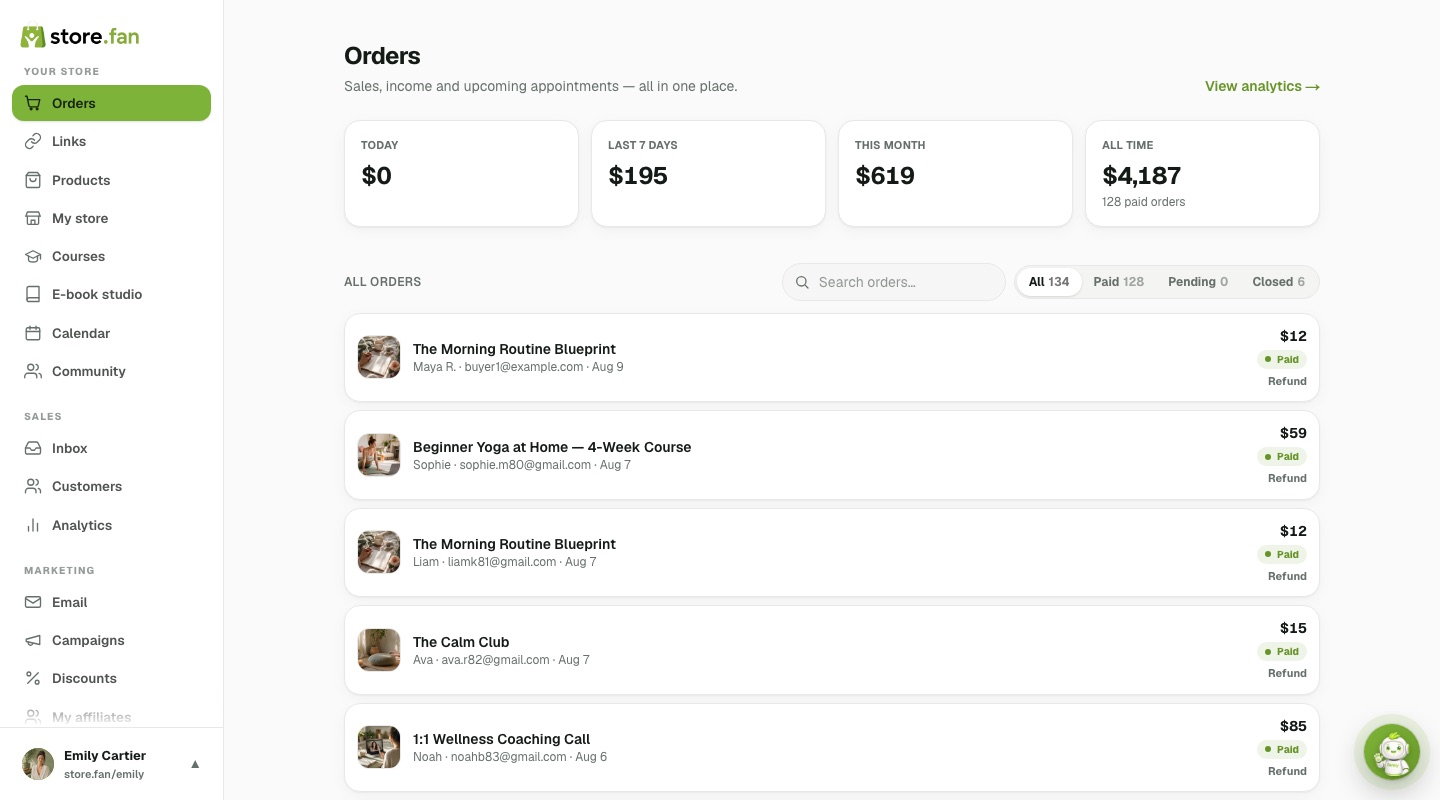 1234
1234No. Every screen is visible on every plan, including free — features your plan doesn't include show an explanation of what they do and what unlocks them instead of a dead end. You can look at the whole product before paying anything, and nothing about your page changes when a trial ends except the ability to take new payments.
Free link-in-bio
Unlimited link cards, sections and images — free forever.
Everything Starter has. Free Plus includes unlimited products of every type (digital downloads, e-books, courses, coaching calls, webinars and memberships), your own community, bookings with Google Calendar sync, the inbox and customer CRM, full analytics, one AI e-book a month, and the complete storefront designer — 28 themes, 11 layouts, 16 font pairings, cover photos, six header styles and animations. Your page lives at store.fan/you. The only difference from Starter is how you pay: Free Plus has no monthly price and Store.Fan keeps 30% of each sale, while Starter is a flat monthly price with a 0% platform fee.
The Links page is a dedicated fast manager, built for the “new video is up” moment — around 10 seconds per link once you're used to it.
- 1Open Dashboard → Links and tap “New link”.
- 2Paste the URL and type a title (e.g. “Bali vlog is live!”).
- 3Tap the large image box to upload a thumbnail — cards with images get noticeably more taps.
- 4Choose a section (or leave it at the top) and save. It's on your public page instantly.
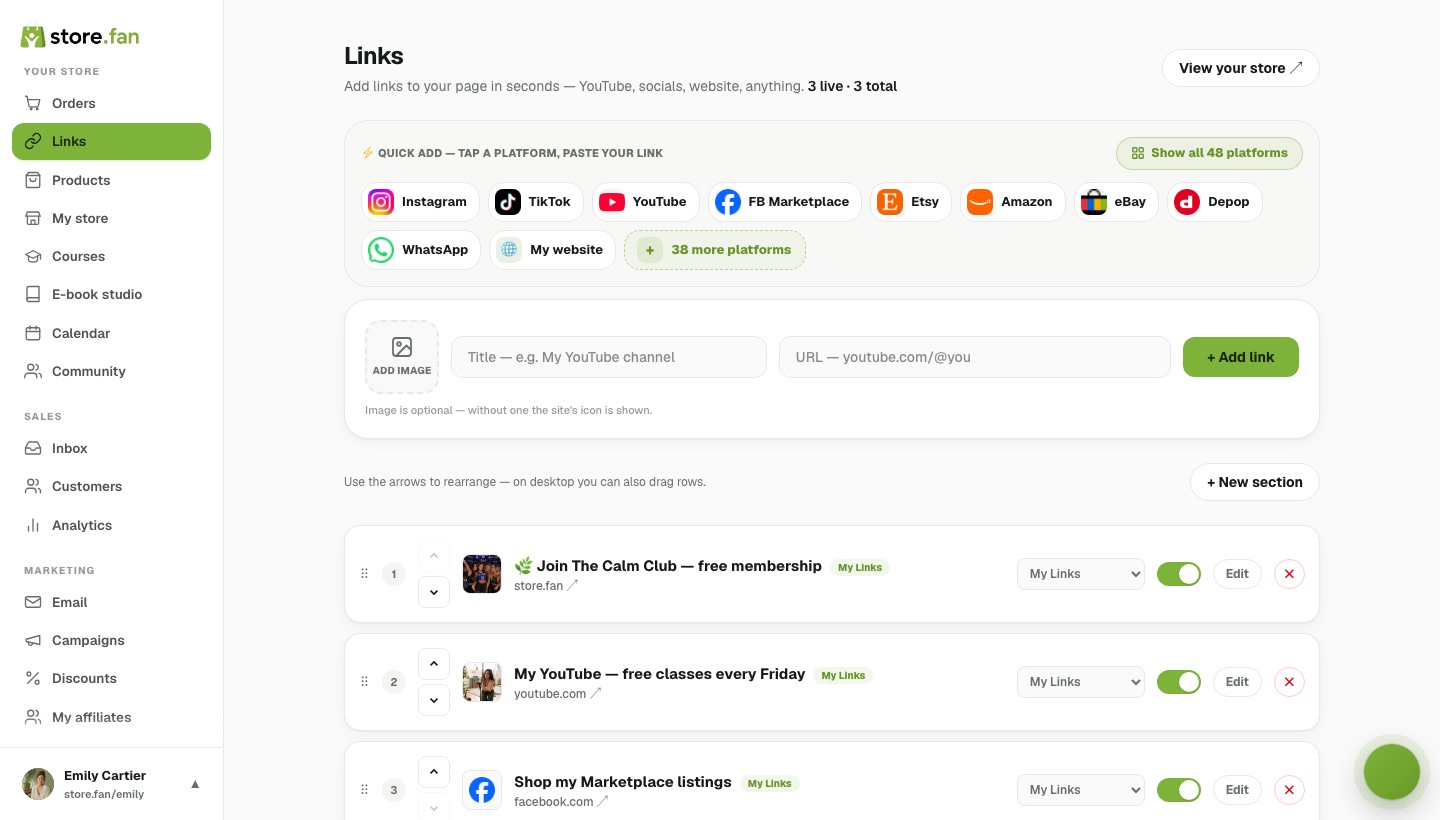 123456
💡 You can also add links from the Products page — they're the same cards, the Links page is just faster.
Yes. Sections are headings on your public page — think “Watch”, “Listen”, “Shop”, “Work with me”. You create them once and then assign any link or product to a section right from its row. Reordering is fully visual: drag rows (or use the arrow buttons) to move items inside a section, and move whole sections up and down the page. Empty sections are hidden automatically.
- 1Dashboard → Links → “+ New section”, give it a name.
- 2On any link row, pick the section from its dropdown.
- 3Drag rows to reorder inside the section; use the section's ▲▼ to move the whole group.
No — unlimited on every plan, including free. Links never count against anything: add every video, playlist, affiliate link and collab you have. If the page gets long, sections keep it scannable.
That's the whole idea — your free page is step one of a commerce platform, not a dead end. When you upgrade, selling unlocks in place on the same page and the same link: digital downloads, courses, bookings, webinars, memberships and communities appear alongside your existing links, in the same design. There is zero migration: no new URL to announce, no design to rebuild, no exports.
Yes, two ways. First, the community banner: an automatic card on your storefront showing your community's name and member count — you control its position (top, after products, or hidden) from the My Store designer. Second, a normal link card pointing to store.fan/c/you — pair it with the “Free membership” community setting and the card becomes a working “Join my community — free” funnel: anyone who taps it can join with just their email.
Mobile-first is the whole design brief — the vast majority of bio-link traffic is on a phone, so the page is built at phone width first and scaled up. Cover photo, avatar, bio, social row, then your cards in one tidy column with big tap targets. Nothing is cramped, nothing needs pinching, and it loads fast on mobile data.
Store design
Themes, layouts, covers and one-tap real looks.
A lot, with zero code. The designer (Dashboard → My Store) gives you 28 hand-tuned themes, 11 layouts (list, grid, masonry, polaroid, carousel and more), 16 font pairings, six header styles including a full-bleed immersive cover, background styles and subtle animation presets. Every control renders instantly in a live phone preview beside the panel, so you always see exactly what fans will get before you save.
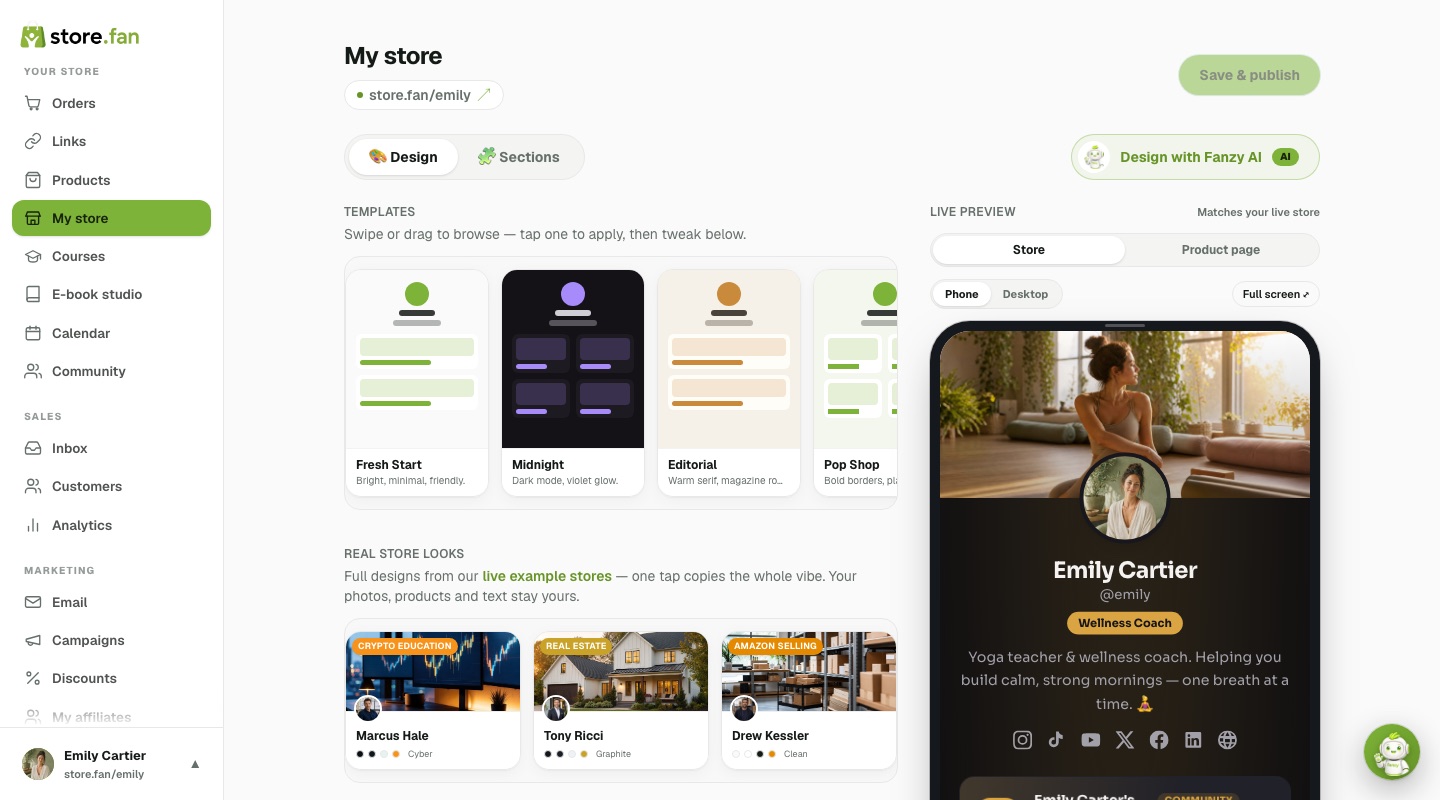 1234
1234Thirty live example stores whose complete design — theme, palette, fonts, layout, header style — can be applied to your own store in one tap. They exist because a blank page is the hardest part: browse the showcase inside the designer (or the public Examples page), find a store in your niche that feels right, tap “Use this look”, and keep editing from there. Only the look is copied; your products, photos and text are untouched.
Stores: upload a cover in the designer and choose a header style — the immersive style paints your photo across the whole page behind a dark scrim, magazine-style. Communities: upload the cover in community settings, then drag the image up and down directly on the dashboard preview to choose the exact crop; the same framing is used on the member feed, the login screen and everywhere else the cover appears.
Yes — storefront blocks render under your products and are edited visually in the designer: a highlighted note (great for announcements), rich text sections, a testimonial wall with names and roles, an FAQ accordion just like this one, and extra link lists. They're the difference between a link list and a page that actually sells for you while you sleep.
Wherever you want it. Dashboard → My Store → “Community banner” gives three placements: Top of store (right under your profile — best for community-first creators), After products (below your catalog), or Hidden.
The banner shows your community's name, member count and a join arrow, and it's styled by your store theme automatically. The choice saves instantly — no Save button needed.
Yes — every theme and layout is designed mobile-first, because the overwhelming majority of link-in-bio traffic arrives from Instagram, TikTok and YouTube apps. The designer previews the phone view by default, tap targets meet accessibility sizes, images lazy-load, and pages are server-rendered so they appear instantly even on slow connections.
Products & selling
Ten product types and how each one is delivered.
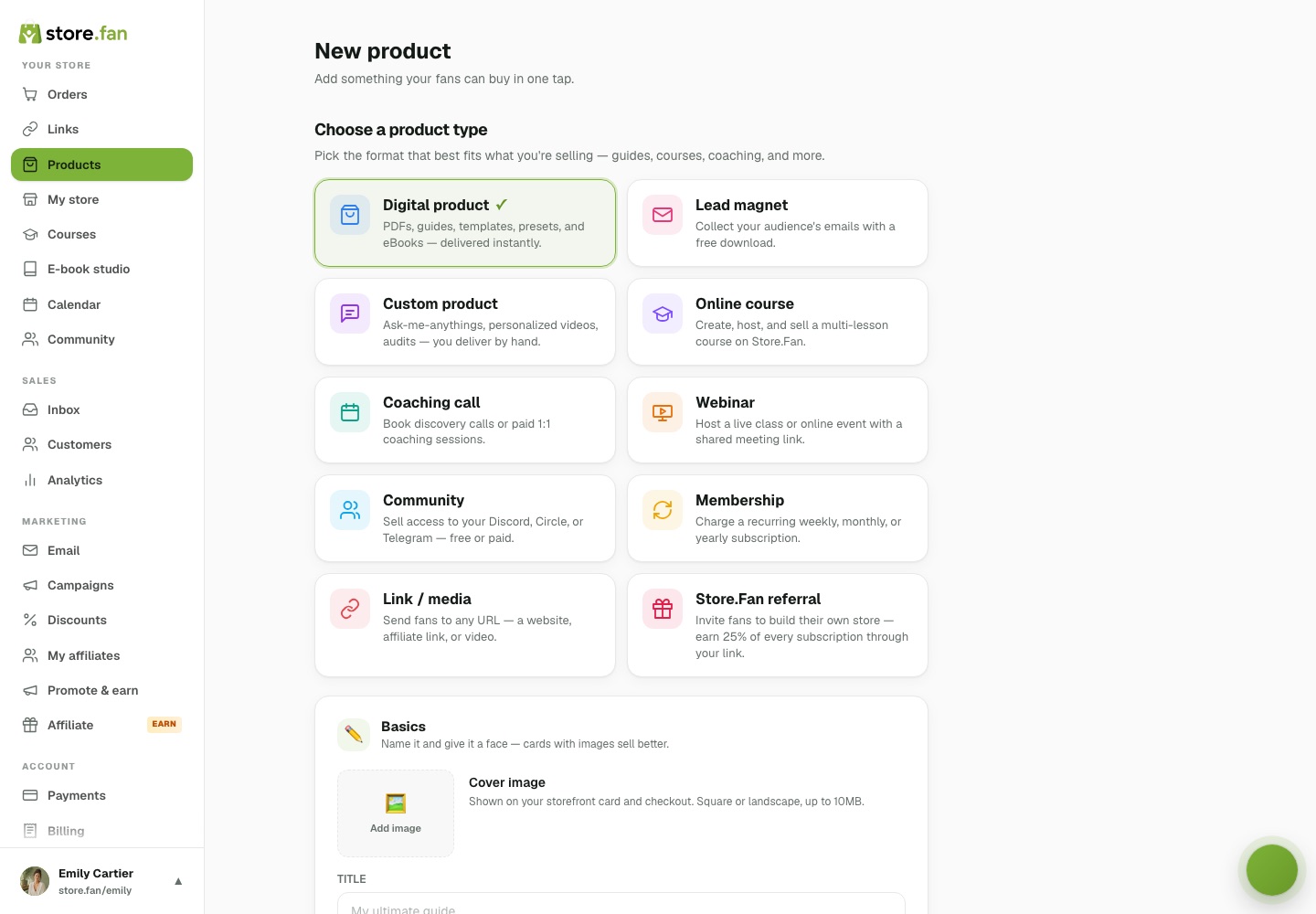
Ten product types, all mixable on one page: digital downloads (files up to 2GB), e-books, online video courses, 1:1 coaching calls with a real booking calendar, live webinars, recurring memberships, paid communities, custom services with your own intake questions, free lead magnets that collect emails — plus unlimited external link cards. Each type has its own delivery flow, so a course buyer gets a player, a call buyer gets a calendar slot, and a community buyer walks straight into the feed.
You can — with one honest caveat. Store.Fan takes the order, the money and the buyer's full shipping address; the parcel itself is yours to pack and post. Create a Custom product, tap “Shipping something physical?” in the order-form section, and every buyer fills in name, street, city, postcode and country before paying. The address arrives on the order page and in your notification email, ready to copy onto a label. What we deliberately don't do is calculate live shipping rates, print carrier labels or track parcels — we've spent our engineering on digital delivery, where a file, a course or a call lands in a buyer's hands in about two seconds. So: sell the candle, the zine, the print run — set a delivery fee on the product, and keep the trip to the post office in your own hands.
Yes — Dashboard → Products → Import products. Paste your store address and we read the catalog straight off it: Shopify (including on your own domain), WooCommerce and Squarespace all publish their listings openly, so there's nothing to install and no password to share. eBay, Etsy, Depop and Gumroad block outside reads, but every one of them lets you export a CSV, and we read the file — column names we know are matched by name, and anything unfamiliar is matched by meaning. Hand-built sites work too: we read the listing data a page publishes for search engines, and when a site has none, we dig the catalog out of the page's own code, which covers Stripe-checkout shops and agency builds.
- 1Dashboard → Products → “Import products”.
- 2Paste your old store's address, or switch to the CSV tab and choose the file.
- 3Review what we found — edit any title or price, untick what you don't want.
- 4Pick how each one behaves here: sell it with a shipping address, sell it as a digital product, or link back to the original listing.
- 5Import. Photos are copied into your own storage as they go.
💡 Run it again whenever you add stock — anything already on your store comes back marked “Already on your store” and unticked, so you never get duplicates.
Yes, and they're copied into your own storage rather than hotlinked from the old shop. That distinction matters: a hotlinked catalog breaks the day you close the store you left, and every visitor to your new page would still be pinging your old platform. Tick “Copy photos to my store” (it's on by default) and each listing's main image is fetched, stored under your account and served from our CDN. One image per product — if your old listing had eight angles, pick the best one there or swap it afterwards.
Up to 250 listings per pass, and you can run it as many times as you like. Your plan's product limit still applies — if you hit it mid-import we stop cleanly, tell you exactly how many went in, and leave the rest sitting on the review screen so nothing is lost. Every plan can sell what you import — Free Plus with a 30% platform fee per sale, Starter and Pro with 0% — and paid plans start with a 14-day free trial.
Add the shipping-address block to a product and a Delivery box appears in the product form. Put a flat fee in it — say 6.50 — and optionally name it (“Standard shipping (2–4 days)”). Buyers then see a clean breakdown before they pay: item, delivery, total, with the button showing the real total rather than springing it on them at the last step. The fee sits on top of the item price even when a discount code is applied, because the courier still charges you full freight. Leave it at 0 for free shipping. It's per product, so a poster and a print run can carry different postage, and the moment you remove the address block the fee disappears with it — a delivery charge can never end up on a download.
- 1Open the product → “What should buyers tell you?”.
- 2Tap “Shipping something physical? + Add” if you haven't already.
- 3In the Delivery box, enter your flat fee and name it if you like.
- 4Save. The breakdown appears on your product page immediately.
Yes — Dashboard → Settings → “Where you sell”. Leave it on Everywhere (the default) and anyone can order. Switch to “Only these countries” and pick from the full list, or use a one-tap group: European Union, UK & Ireland, North America, United States, Nordics, Gulf (GCC), Australia & NZ. Buyers then only see the countries you post to in the checkout dropdown — and if you sell to exactly one country, it's filled in for them. It's enforced on our servers too, not just in the browser, so an order can't sneak through from somewhere you don't ship. The setting is store-wide and applies to every product.
No, and that's deliberate: a mistyped province is a parcel that comes back. Country is always a dropdown with a real flag beside it. Once it's chosen, the field below turns into that country's own official list where one exists — states for the US, provinces for Canada, federal states for Germany, prefectures for Japan, the 81 iller for Türkiye, and 33 countries in total. Where a country's official list is the wrong level of detail for a courier (the UK's councils, France's departments), we leave it as a text field rather than force a bad choice. Postcodes are checked against the shape that country actually uses, so a four-digit US ZIP is flagged before the buyer pays. In Türkiye the city field also suggests the district (ilçe) for the province they picked — as suggestions, never a locked list, so somewhere we don't have still goes through.
Yes. The photo on a product page is tappable — it opens the full, uncropped image over a dimmed backdrop, with tap-to-zoom, drag-to-pan, and swipe-down or Escape to close. The card on your storefront crops to a neat 2:1 banner, which is right for browsing but hides detail; anyone deciding whether to buy the vintage jacket can now see the whole thing.
It's one tap in the product form. Under “What should buyers tell you?” there's a “Shipping something physical?” shortcut — tap it and a full address block is added: full name, street, apartment, city, state, postcode and country, marked required by default. Buyers see it as one tidy group at checkout with autofill working normally, and they can't complete the order until the essential lines are filled. The finished address shows up on the order in your dashboard, so you can copy it straight onto a label.
- 1Dashboard → Products → New product → pick “Custom product”.
- 2Scroll to “What should buyers tell you?”.
- 3Tap “Shipping something physical? + Add”.
- 4Rename the label if you like — “Where should we ship it?” is the default — and keep it Required.
- 5Save. Every order now arrives with a complete postal address attached.
Rates yes, labels and tracking no — and we'd rather say so plainly than half-do it. Each product takes a flat delivery fee, which shows as its own line at checkout (item, delivery, total) and arrives on the order so you can see what the buyer paid towards postage. What there isn't: carrier integration, live rate calculation by weight or distance, label printing, or tracking numbers. Ship with whoever you already use and email the buyer a tracking number if you have one. Everything digital — files, e-books, courses, calls, memberships, community access — is fully automated on our side; physical fulfilment is the one part that stays human, and that human is you.
Instantly and automatically — you never send anything by hand. The moment payment clears, the buyer lands on a personal delivery page with a download button, and the same tokenized link goes out by email so it's never lost. Files stream from a global CDN, links are secure and permanent for the buyer, and if the product includes community access the delivery page and receipt both carry a one-click “Enter the community” button.
Products live in Dashboard → Products, and the form adapts to whatever type you pick.
- 1Dashboard → Products → “New product”.
- 2Pick a type — download, e-book, course, call, webinar, membership, community, custom or lead magnet.
- 3Add the title, price and a cover image, then the content: upload a file, build lessons, set available hours, or paste a meeting link depending on the type.
- 4Optional: tick “Include community access” so every buyer automatically joins your community.
- 5Save — it's live on your page immediately, and you can drag it into any section.
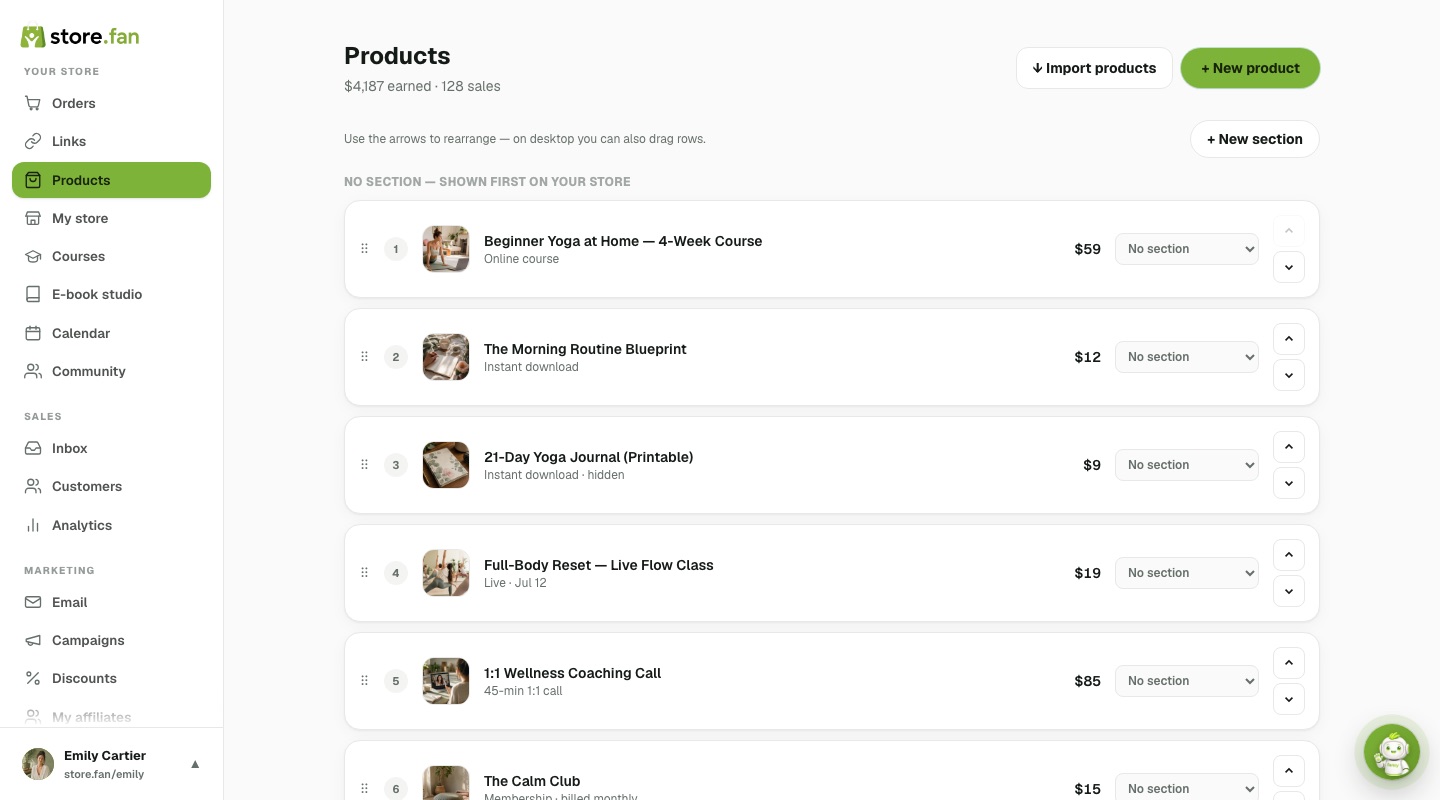 12345
12345Yes — every product supports a compare-at price. Set your real price to $19 and the compare-at to $49, and buyers see “$49” struck through next to the live price on your page and in checkout — the classic launch-offer look. On Pro you can pair it with a flash campaign (countdown timer + storefront banner) for genuine urgency.
A free product that trades value for an email address. Fans “buy” it for $0 with just their email, get the file instantly like any paid order, and are added to your audience — which you can email later with Pro's email marketing. Power move: tick “Include community access” on the lead magnet and every download also becomes a community member automatically, so your freebie fills the room you'll later sell into.
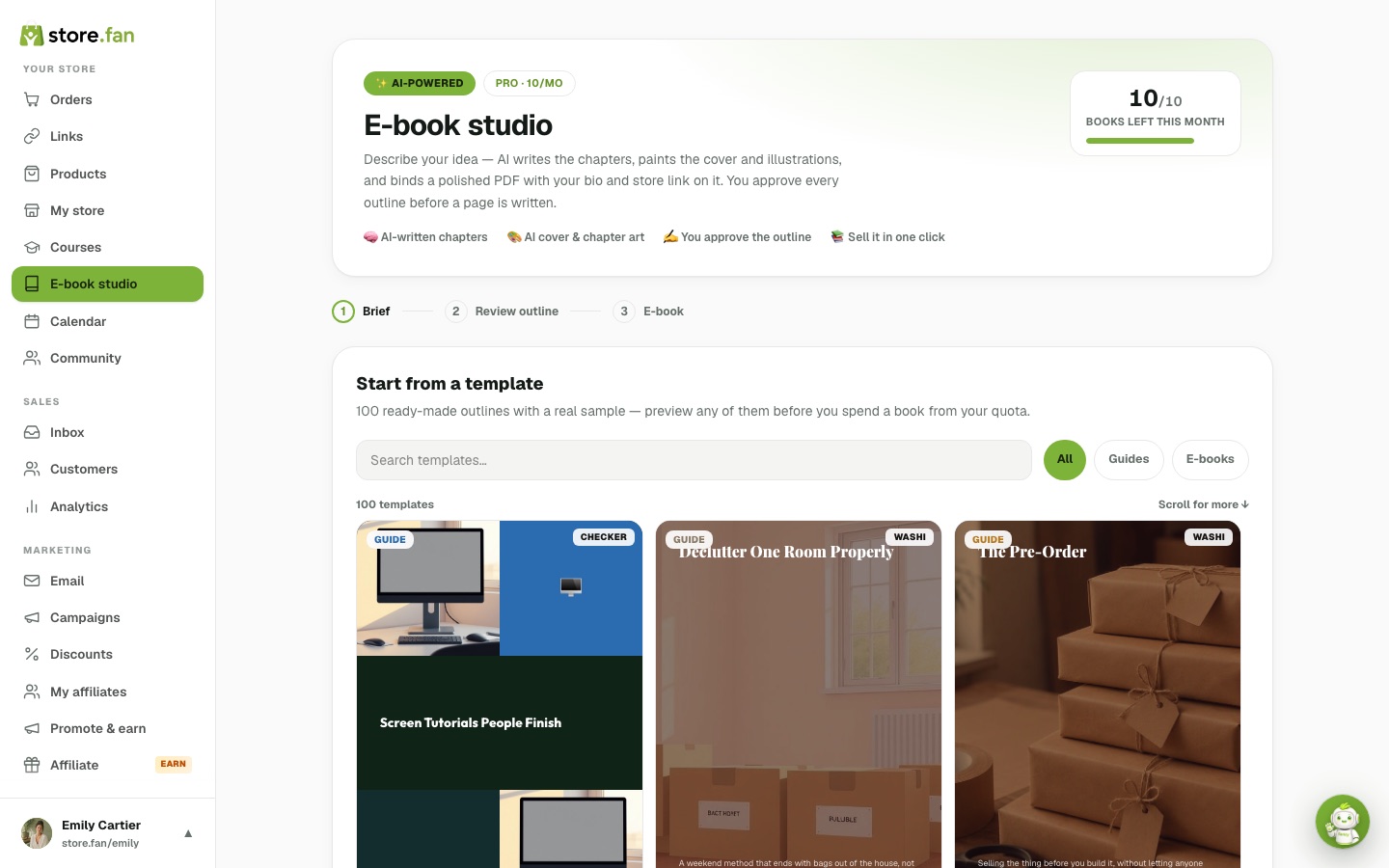
Describe a topic — “a 30-day morning-routine guide for busy parents” — and Store.Fan's AI writes the chapters, paints an original cover and per-chapter illustrations, and binds a polished, branded PDF that's ready to sell as a digital product in one click. You can edit everything before publishing. Starter includes 1 book per month, Pro includes 10.
No — there's a gallery of 100 ready-made templates: 50 full e-books and 50 practical guides across business, fitness, money, food, tech, family and more. Each one comes with a finished outline, chapter-by-chapter summaries, a genuinely written sample and a sample PDF you can open in a new tab before deciding. Pick one and the studio opens prefilled; “Use this outline” jumps straight to the review step with no AI wait. Everything — title, chapters, tone — stays editable, so the template is a starting point, not a straitjacket.
💡 Browsing on your phone works too — the gallery and every preview are built mobile-first.
Yes — the same section system that organizes links organizes products. Create sections (“Courses”, “Freebies”, “Work with me”), assign each product from the dropdown on its row, and reorder everything visually — drag rows within a section, or move entire sections with their arrows.
Your public page renders each section as a heading with its products grouped underneath — and the same order controls exist inside the My Store designer, so you can arrange while previewing.
Unlimited, on every plan including Free Plus — and unlimited link cards too. Build a full catalog with bundles, tiers and freebies; sections and drag-to-order keep even a big catalog tidy.
Each product gets its own page on your store: cover image, title, description, price and one obvious buy button, plus your other products underneath so a single visit can turn into two sales. Buyers never leave your domain to browse — only the card form itself is handled by Stripe.
One adaptive form. Pick the product type and the fields change to match — a download asks for a file, a call asks for duration and availability, a membership asks for billing interval, a course links to your lessons. Cover image, price, optional discount price, visibility and delivery settings are all on the same screen, so publishing takes minutes.
 1234
1234You describe a topic; Fanzy proposes a chapter outline you can reorder or rewrite, then drafts each chapter, generates an illustrated cover and chapter art, and exports a polished PDF with your bio and store link on the final page. Free Plus and Starter include one book a month, Pro ten. The finished file is a standard PDF you own — sell it here (0% fee on paid plans) or take it anywhere.
 1234
1234Courses, calls & webinars
Course player, bookable calendars and live events.
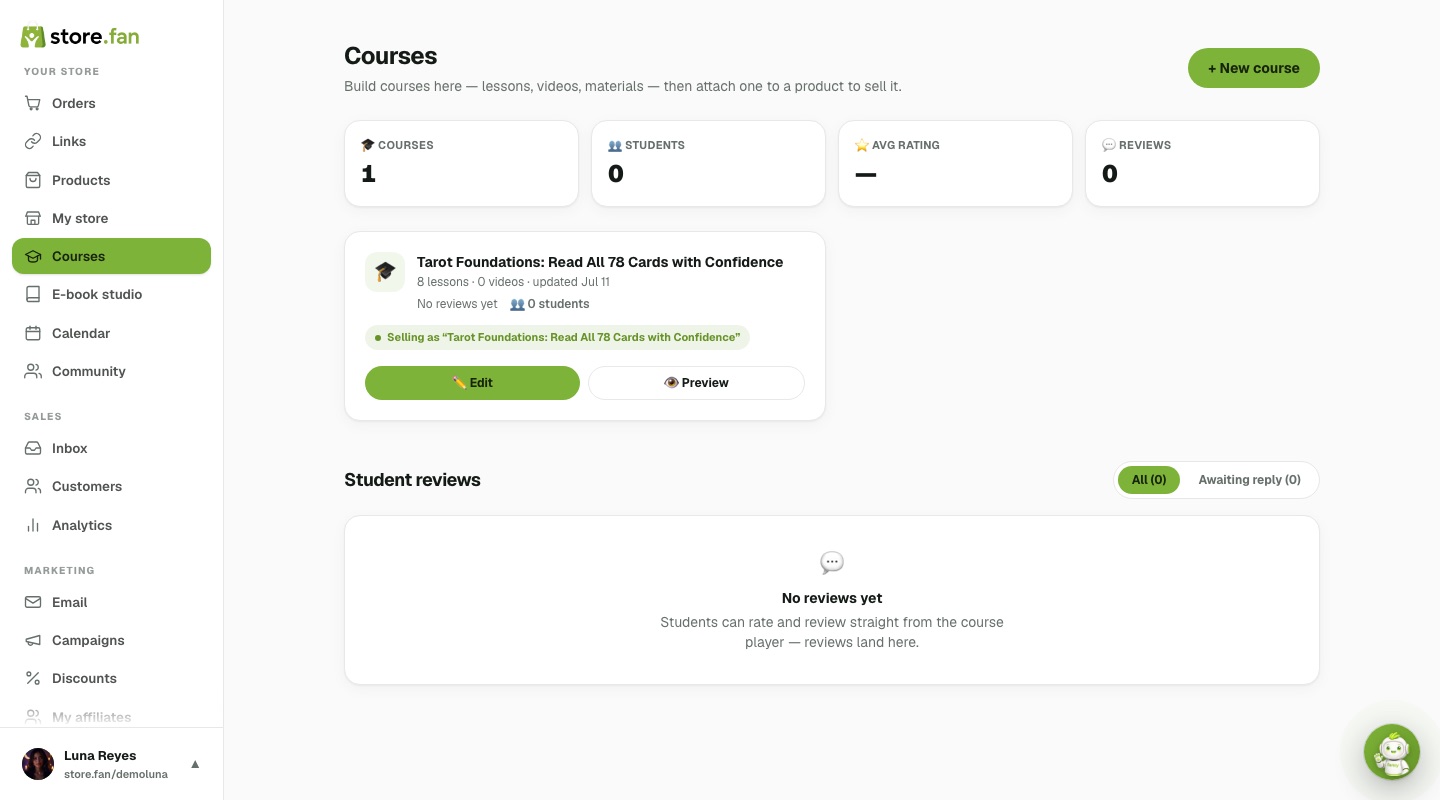
Yes. Build lessons in the course editor, attach worksheets and materials, and write lesson notes — students get a clean course player with progress tracking, note-taking and their place remembered across devices. For the video itself: on Starter each lesson links a YouTube or Vimeo video (unlisted works fine); on Pro you upload the file (up to 2GB per lesson) straight from your browser and we host, encode and stream it, so nothing lives on a public video platform.
 1234
1234They go through an automatic optimization pipeline: after the browser upload finishes, our encoder re-encodes each video for instant streaming, generates a poster frame, and swaps the optimized version in — you'll see an “Optimizing…” badge for a few minutes on long files. Students always stream the smoothest version, and playback works the way modern apps do: one video plays at a time, and scrolling away pauses it.
Yes. Buyers rate your course with stars and an optional comment right from the player, and every review appears in your dashboard where you can reply publicly. Ratings show on the course's product page — social proof that compounds with every happy student.
Yes — every course has a creator preview that opens the exact student player (lessons, videos, materials, progress bar) before you publish, so you can quality-check the whole experience end to end without buying your own product.
Buyers book themselves into your real availability — no DM tennis, no timezone math, no double bookings.
- 1Create a Coaching Call product and set your available days and hours (e.g. Tue–Thu, 10:00–16:00).
- 2Connect Google Calendar in one click — your existing busy times block those slots automatically.
- 3A buyer picks an open slot at checkout; the slot is held during payment so two people can never take it.
- 4Both of you receive the booking with an auto-created Google Meet link; the delivery page shows a live countdown, and the iOS app reminds you 30 minutes before the call.
Create a webinar product with a date, time and your meeting link (Zoom, Meet, anything). Fans register through normal checkout — free or paid — and get the link on their delivery page and by email, with a countdown to start time. Upcoming webinars also appear automatically in your community's sidebar under “Upcoming events”, so your members never miss one.
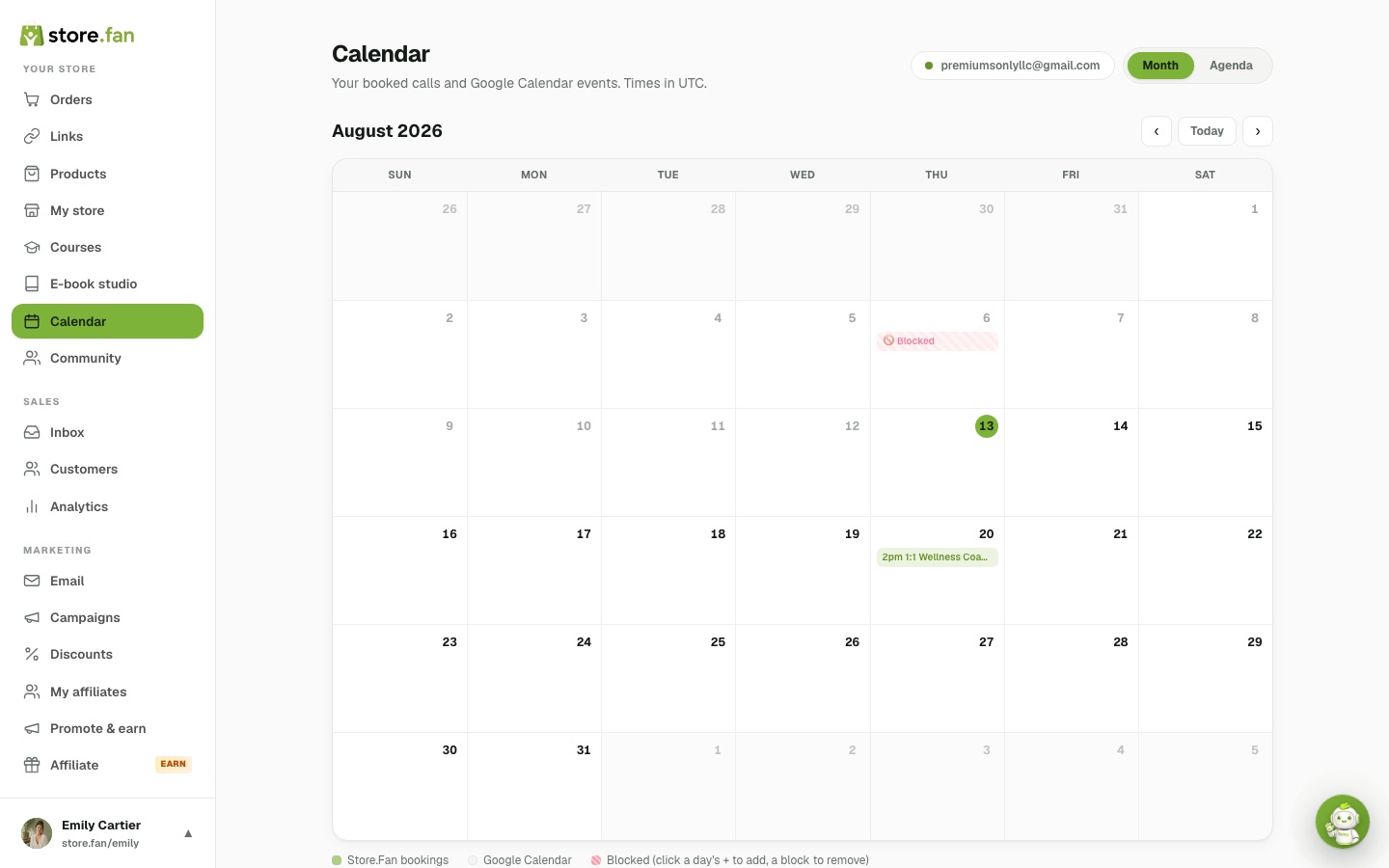
The Calendar screen shows every booking and every open slot in one place, and it's the same availability buyers see when they book. Connect Google Calendar once and each paid booking creates a Google Meet link and drops the event into both calendars — sold slots close automatically so you can't be double-booked.
 1234
1234Memberships
Recurring revenue, with community access built in.
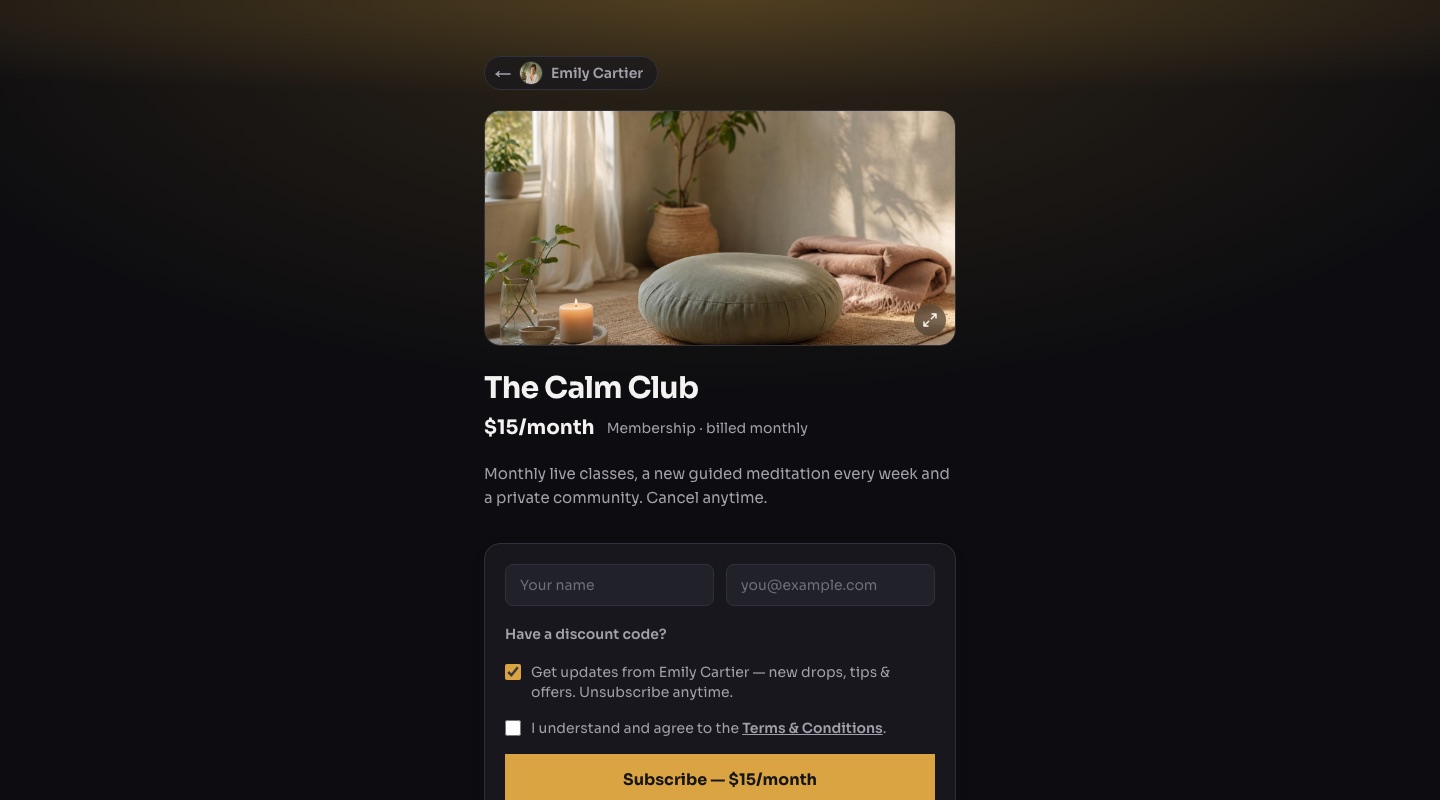
Create a membership product, set a monthly or yearly price, and Stripe handles the recurring billing automatically — charges, retries, receipts every cycle. You see every subscriber and their status in your dashboard, and your storefront shows the price with its interval (e.g. “$15/mo”) so there are no surprises at checkout.
 123
123The proven bundle: community access + one recurring live touchpoint + early access. Concretely: your Store.Fan community (with members-only channels), a monthly group call sold as a recurring perk, early access to new drops, and a member discount code. Start with one strong perk and add more as you grow — you can edit the membership's description anytime.
Yes — tick “Include community access” on the membership product and every subscriber becomes a community member automatically, with the one-click join button on their receipt. Combine three features for a real VIP system: the membership grants access, a locked buyers-only channel gives subscribers private content, and a member badge (“⭐ Member”) shows their status on every post and comment.
They keep access until the end of the period they've already paid for — standard, fair behavior that Stripe enforces automatically. Their subscriber row in your dashboard shows the status change, so you always know who's active.
Communities
Your own paid community — hosted under your brand.
A private social space at store.fan/c/you — an Instagram-smooth feed with posts, comments, double-tap likes, photos, videos up to 2GB and YouTube embeds — fully themed to your brand with your colors, fonts and cover. It is not a Discord server: there are no invite links to leak, buyers join automatically at checkout, VIP channels unlock with purchases, and locked content is enforced on the server so it can never be scraped by non-buyers.
One click to launch, a few minutes to make it yours.
- 1Dashboard → Community → “Launch your community”.
- 2Upload a cover photo and drag it up/down right on the preview to set the crop.
- 3Open the Appearance panel: light / dark / auto mode, 8 accent colors, 6 fonts, 3 layouts — every choice saves instantly and shows in the live preview.
- 4Add categories like “Wins”, “Questions”, “Announcements”.
- 5Post a welcome message — you're live at store.fan/c/you.
Three doors, all automatic — no manual approvals, ever.
1. Purchases: tick “Include community access” on any product — a course, a membership, even a free lead magnet — and every buyer becomes a member the second checkout clears, with a one-click join button on their receipt and delivery page.
2. Invites: add any email from the dashboard's Members panel and they instantly get a join-link email — free, no purchase needed.
3. Open joining: enable “Free membership” in settings and anyone can join with just their email.
💡 The free lead magnet + community combo is the strongest funnel: the freebie fills the room, the locked VIP channel sells to it.
A single toggle in community settings that opens the door to everyone: visitors enter their email, verify a 6-digit code, set a password and they're in — no purchase required. It turns a “Join my community” link card in your bio into a working growth machine. Your buyers-only channels stay locked regardless, so free members see exactly what they're missing — with an Unlock button one tap from checkout.
Any category can be locked to one of your products, turning it into gated content that also sells itself.
- 1Dashboard → Community → Categories.
- 2On the category row, open the dropdown and choose “🔒 Buyers of [product]”.
- 3Buyers of that product — and your moderators — see the channel and all its posts normally.
- 4Everyone else sees the tab with a lock, and each post as a locked teaser card with an “Unlock — $price” button that goes straight to that product's checkout.
💡 Locked text, photos and video never reach a non-buyer's browser — gating is enforced server-side.
Status that's earned by buying, not assigned by hand. In the community settings you pick an icon from a 54-icon catalog (👑 💎 🔥 🎓 …), write your own label — “VIP Student”, “Founding Member”, anything up to 24 characters — and attach it to a product.
From that moment, everyone who has ever bought that product wears the badge next to their name on every post and comment, automatically, matched by their purchase history — even purchases made before you created the badge count. Other members see it and ask how to get one. That's the point.
A curated showcase of up to 6 of your products in the community sidebar — your storefront, inside the room where your warmest audience hangs out.
Members who already own a product see a proud “Owned ✓” instead of the price; everyone else sees the price and lands on checkout in one tap. Attach badges to the same products and each offer reads like a rank waiting to be unlocked.
Yes — write the post, tap the clock icon in the composer, and pick any date and time up to a year ahead.
Until then only you and your mods see it, marked with an amber “Scheduled” chip and its go-live time. At the exact minute it appears in the feed for everyone and the notification email goes out to your members automatically — even video posts work, since encoding finishes in the background before publish.
Your call, per community. The “Who can post” setting has two modes: “Creator & mods” (broadcast style — you and your moderators post, members join in through comments; this is the default) or “Everyone” (any member can start a post). Either way you can promote any member to moderator with one click from the Members panel — mods can pin posts, remove content, and see locked channels.
First visit: they enter their email at store.fan/c/you, receive a 6-digit code, and are asked to create a password (minimum 8 characters). Buyers coming from a receipt skip even that — their “Enter the community” button signs them in with one click, then asks for a password.
Every visit after that is a normal email + password sign-in — and it's one account for the whole platform, so a member of your community can enter any other Store.Fan community they belong to without registering again. Forgot the password? The “Forgot password?” link resets it with a fresh email code in under a minute.
Yes. When you (the creator) publish a post, every member with notifications enabled gets a branded email with the post preview and a one-click way back into the community. Each member controls their own toggle (“Email me when the creator posts”) in their community profile, scheduled posts trigger the same email at publish time, and purchase receipts carry the community join button — so the loop from email to feed is always one tap.
Yes — the danger zone at the bottom of the community dashboard closes it in one click. Members see a friendly “taking a break” page (nothing is deleted, nobody is removed), the storefront banner hides automatically, and one click reopens everything exactly as it was — posts, members, badges intact.
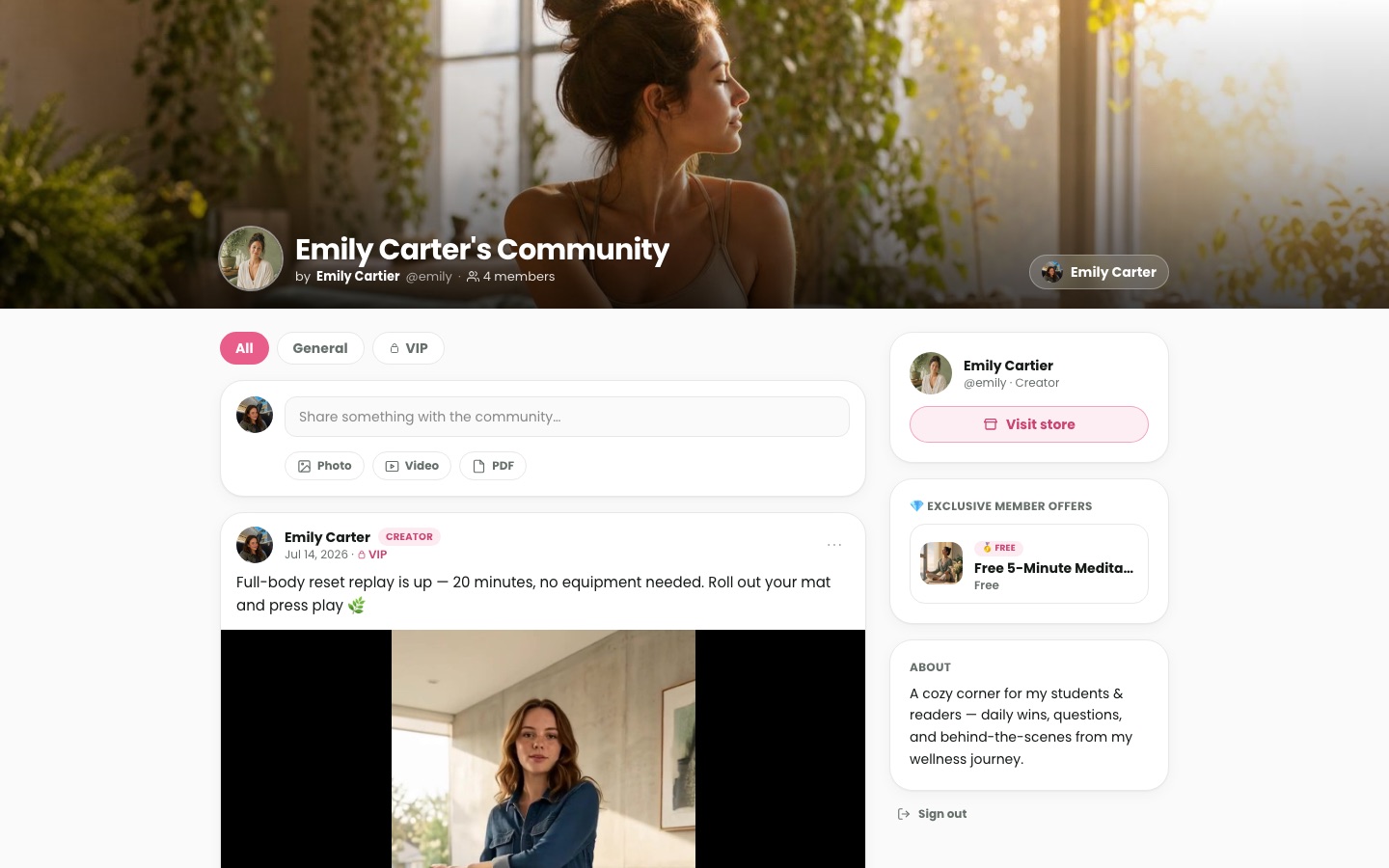
It lives at store.fan/c/yourname, linked from your storefront, with your name and branding on it: a feed of posts with photos, video and files, channels down the side, and locked channels showing a join or upgrade prompt instead of the content. Members sign in with a lightweight email account created on their first visit — no app to install.
The Community screen in your dashboard: write and schedule posts, create or lock channels, see and moderate members, hand out roles and badges, and check what's getting engagement. Email notifications for new posts are on by default so members come back without you chasing them.
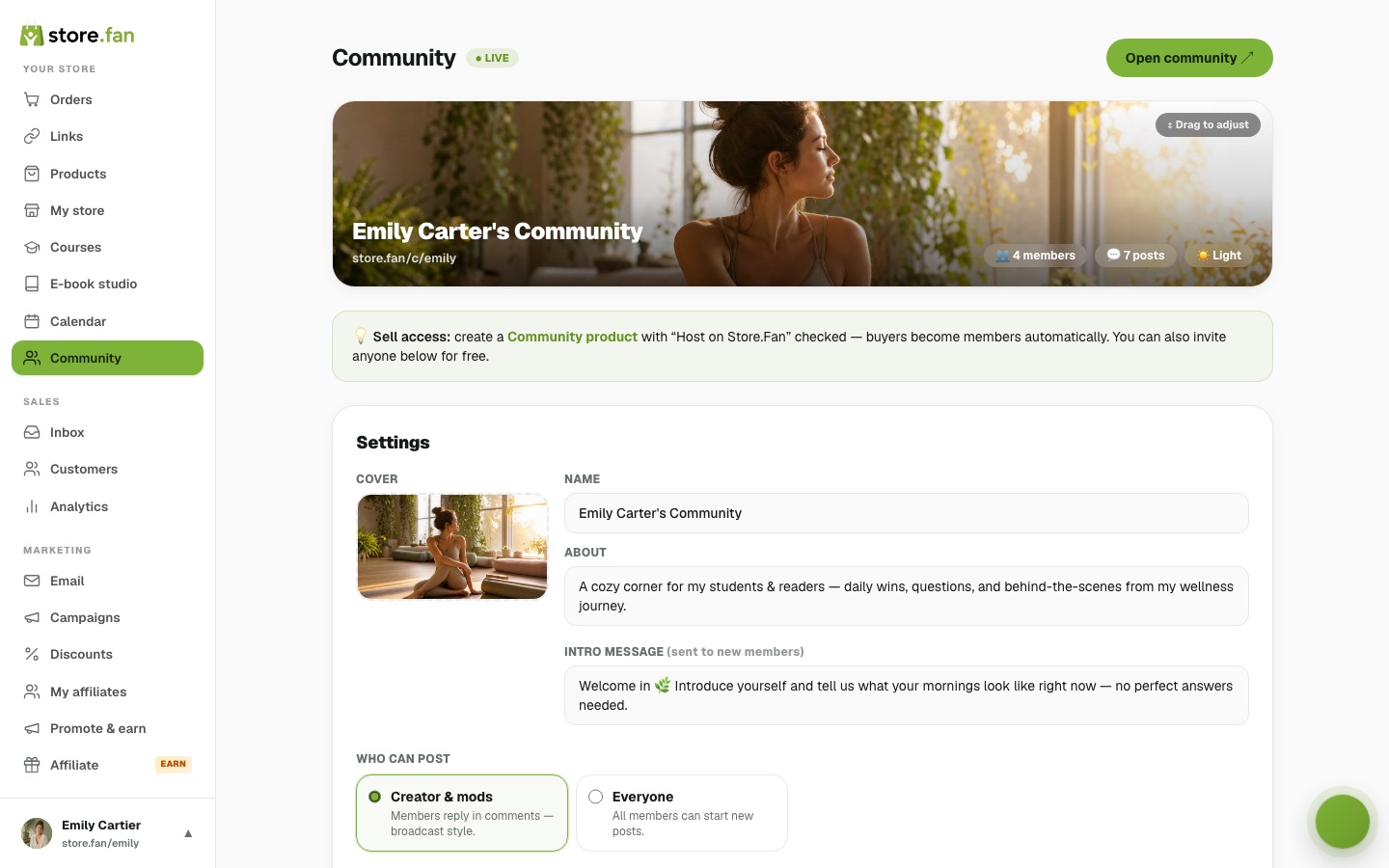
Everything lives on one screen: Dashboard → Community. You name it, describe it, decide who can post, and it's live at store.fan/c/yourname — linked from your storefront automatically.
 12345See it live
Create a product of type Community (or Membership) with “Host on Store.Fan” checked, price it monthly, yearly or one-time, and buyers become members automatically the moment they pay — no invite to send, no list to maintain. That prompt sits at the top of the Community screen so you can't miss it.
You can mix models freely: a free-to-join community with one or two paid VIP channels inside it usually converts better than locking the whole room, because people can see the value before paying.
- 1Dashboard → Products → New product → pick “Community”.
- 2Tick “Host on Store.Fan” so access is granted automatically.
- 3Set a price and billing interval (monthly, yearly or one-time).
- 4Back in Community, lock any channel to that product to make it VIP.
💡 Members who let a subscription lapse keep their account but lose access to locked channels — they can rejoin any time without losing their history.
A feed at store.fan/c/yourname with your cover, your name and your channels — posts with photos, video and files, comments underneath, and locked channels showing a join or upgrade prompt instead of the content. They sign in with a lightweight email account created on their first visit; there's no app to install and nothing to configure.
 1Your cover & name2The feed
Payments, tax & cash out
Money goes straight to you — with tax handled.
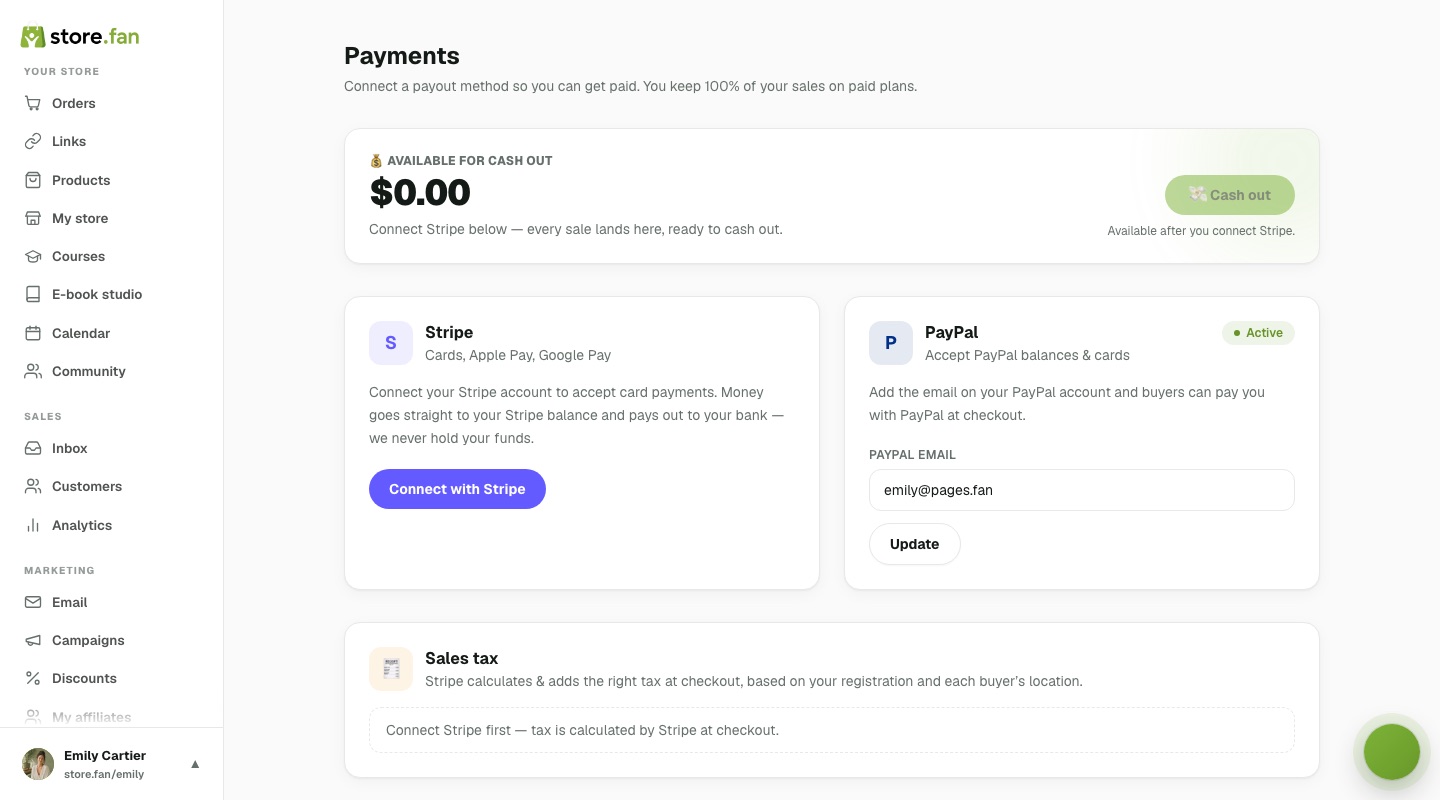
Through your own Stripe account — connected in one click from Dashboard → Payments. Every sale settles directly into your Stripe balance: there is no Store.Fan wallet, no withdrawal request, no waiting on us, and we never hold your funds. New to Stripe? The connect flow creates your account in a few minutes, right from the dashboard. (PayPal support is coming soon.)
 123
123All major credit and debit cards through Stripe, plus Apple Pay and Google Pay automatically on supported devices — the one-tap wallet buttons appear on their own whenever the buyer's device supports them, which measurably reduces abandoned checkouts on mobile.
It depends on your plan. On Free Plus there's no monthly price and Store.Fan keeps 30% of each sale. On Starter and Pro the platform fee is 0% — sell $1,000 and Store.Fan's cut is $0. On every plan, Stripe's standard processing fee (roughly 2.9% + 30¢, set by Stripe, not us) is separate from the platform fee.
Automatically, powered by Stripe Tax — the same engine the biggest commerce platforms use.
- 1Dashboard → Payments → Sales tax.
- 2Enter your country (and state, if you're in the US) plus your business address.
- 3Choose whether tax is added on top of your price or included in it.
- 4Save — from then on the correct rate is calculated and collected at checkout based on each buyer's location, across 11,000+ jurisdictions, only where you're registered.
Your balance lives right in the dashboard — no separate Stripe login needed for day-to-day.
- 1Open Dashboard → Payments — the balance card shows exactly what's available right now.
- 2Tap “Cash out” for a standard payout to your bank: free, typically 1–2 business days.
- 3Or tap “Instant” to send it to a supported debit card — it arrives in minutes for a small Stripe fee.
💡 You also get an email the moment a payout lands or fails, so you never have to babysit transfers.
Standard payouts typically land within 1–2 business days of cashing out; instant payouts arrive in minutes. Either way the money moves inside your own Stripe account — Store.Fan is never in the flow of funds.
Personal, not corporate: buyers receive a branded receipt sent from your own store address ([email protected]) with your name and profile photo — replies land in your inbox, not a no-reply void.
The receipt carries the access button for whatever they bought, and if the product includes community membership, a one-click “Enter the community” button plus instructions for signing in later.
Two separate things: your Store.Fan subscription can be cancelled anytime and you keep access until the end of the billing period. For your product sales, the refund policy is yours to set — you issue refunds directly from your own Stripe dashboard, and we recommend stating your policy in the product description.
Growing your store
Email, urgency, referrals and your numbers.
Yes, on Pro. Email marketing sends campaigns and broadcasts to your whole audience or a precise slice of it — all buyers, community members, or buyers of one specific product. You get 5,000 sends included every month, an AI assistant that drafts the email from a one-line prompt, and every message goes out with your photo and store branding from your [email protected] address.
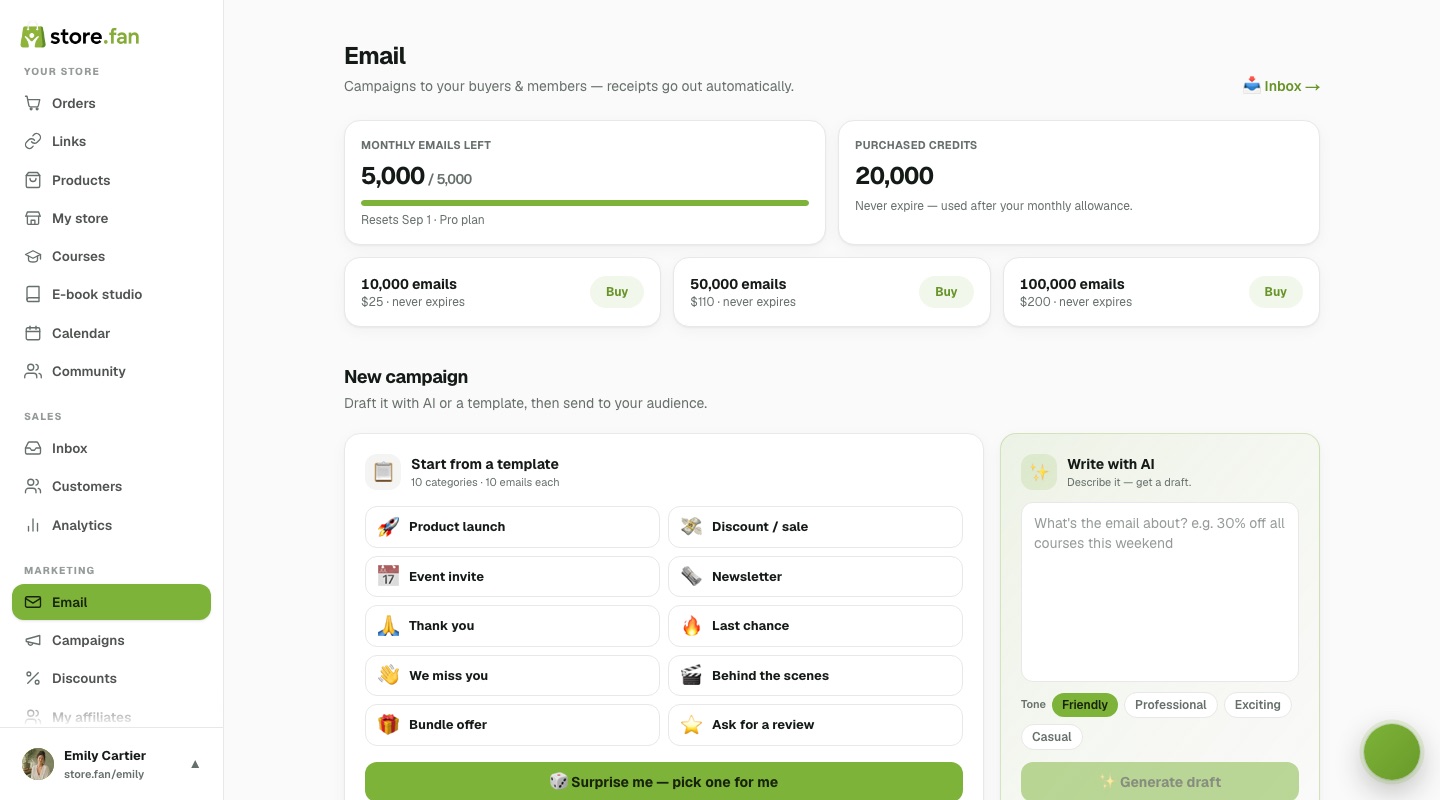 1234
1234Simple wallet: every sent email — campaign, broadcast or inbox reply — uses one credit. Pro includes 5,000 credits refreshed monthly; if a big launch burns through them, buy a credit pack right from the Email page and keep sending without waiting for the reset.
Yes — the two-way inbox includes a composer for brand-new emails to any address, sent from your [email protected] identity with your photo. Their reply comes back into the same thread, so a cold pitch, a collab request or a customer question all live in one conversation view.
Yes, on Pro. Promo codes work at checkout with usage caps and automatic expiry (“LAUNCH20, first 50 buyers”). Flash campaigns go further: a countdown banner on your storefront with its own end time, driving urgency the way big drops do. Pair either with the compare-at strikethrough price for the full launch effect.
Yes — and it's open to every member on every plan, free included. You get a personal link (join.store.fan/yourname) and a ?ref= code that works on any store.fan page, plus custom short links with per-link stats; anyone who signs up through them and pays for Starter or Pro earns you 25–50% of every payment — renewals included — for their first 12 months. The rate is a ladder: it starts at 25% and climbs with the number of your referrals who paid in the last 30 days, up to 50%, locked in at each sale. Payouts go instantly to your connected Stripe account, no minimums, no invoicing.
Every plan includes analytics: revenue, store views, top products and sales over time in clear charts, right in the dashboard. Pro adds a Google Analytics connection — drop in your GA4 measurement ID and every storefront view flows into your own property for funnel-level analysis alongside the rest of your marketing.
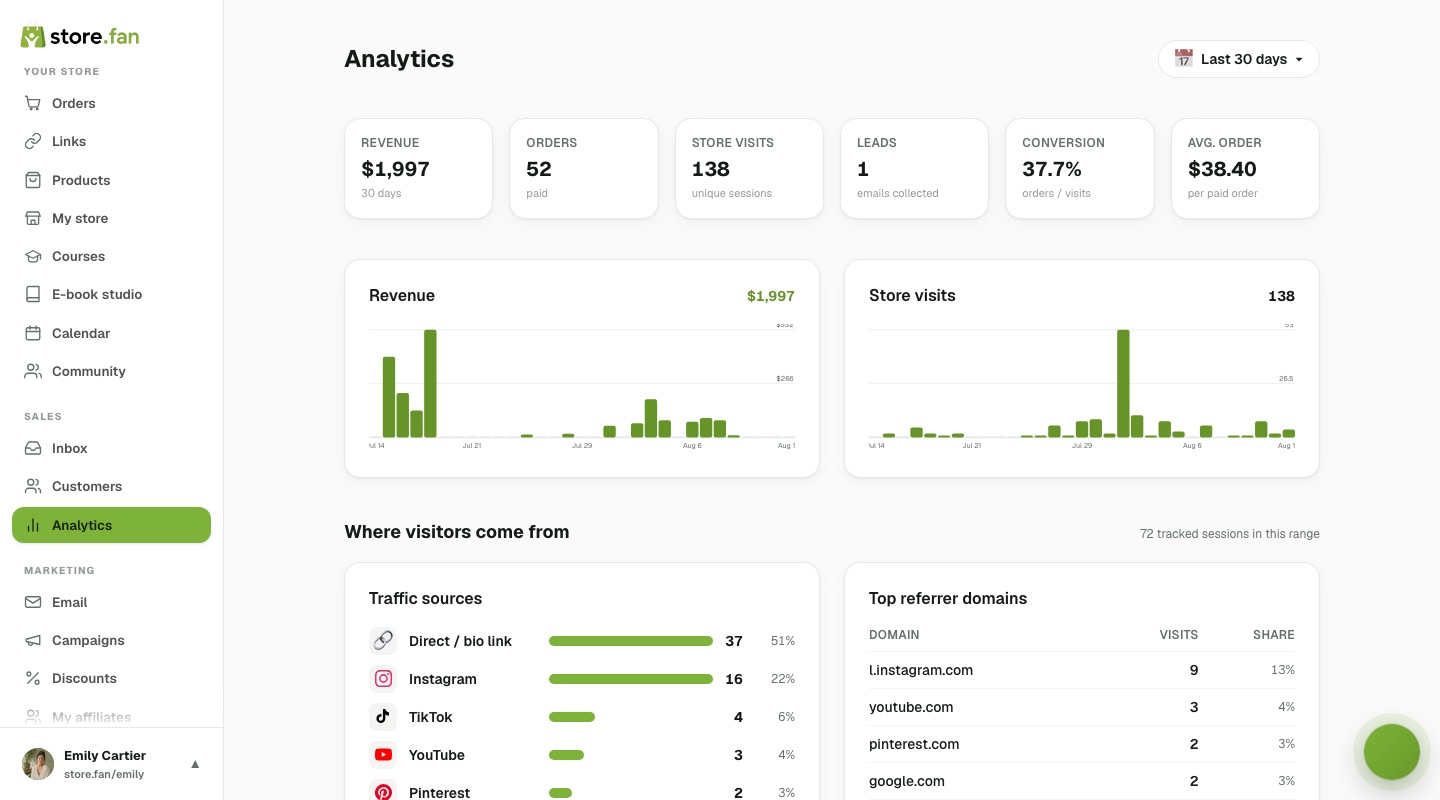 1234
1234Discounts → new code: pick a percentage, optionally cap the number of uses (“first 50 buyers”) and choose which products it applies to. Buyers enter it at checkout and see the saving before they pay; you can switch any code on or off at any moment without deleting it.
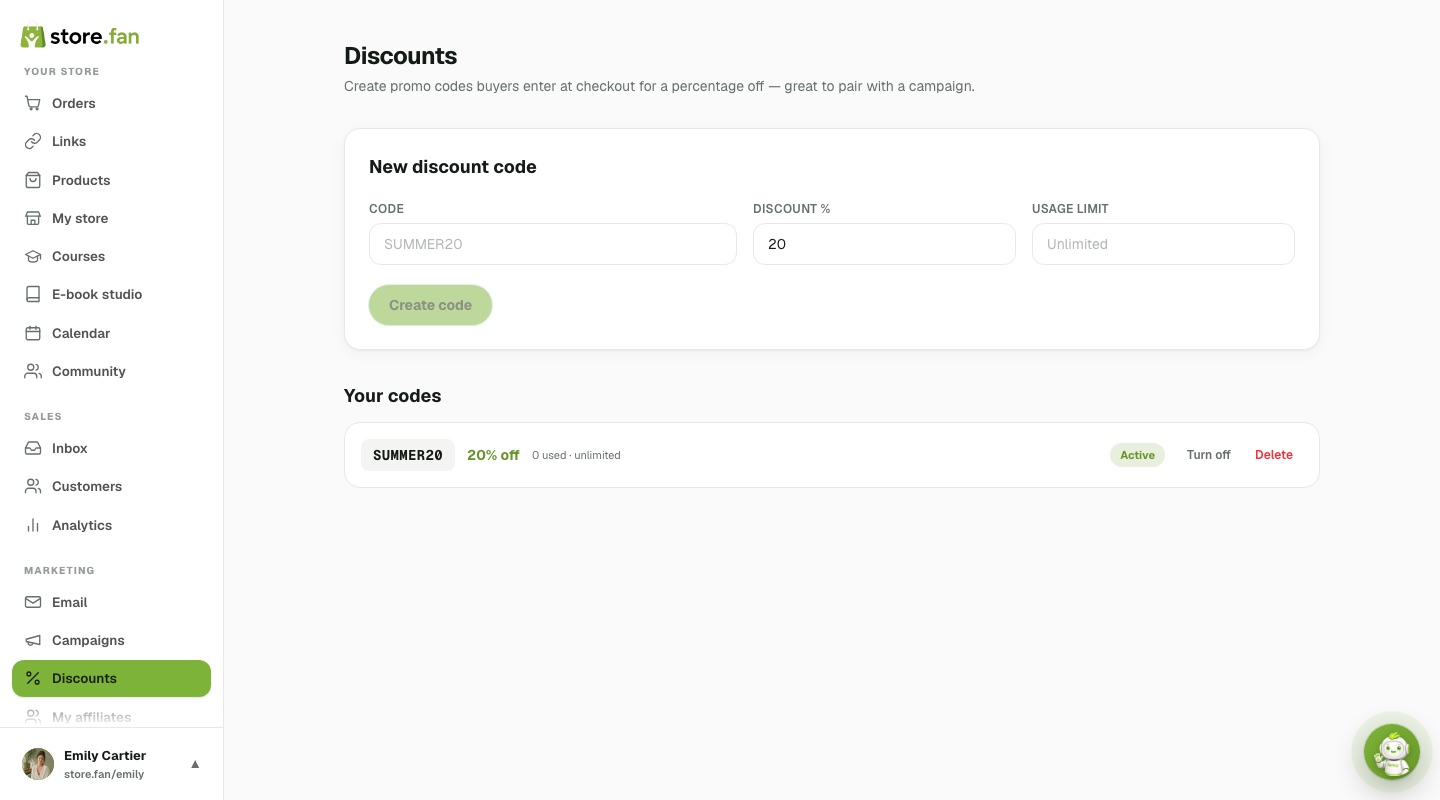 12345
12345A scheduled promo layer over your store: an animated top banner with a live countdown, and optionally a spotlight treatment on one product — badge, glow and promo strip. You set start and end times; it switches itself on and off, so a weekend sale needs no babysitting.
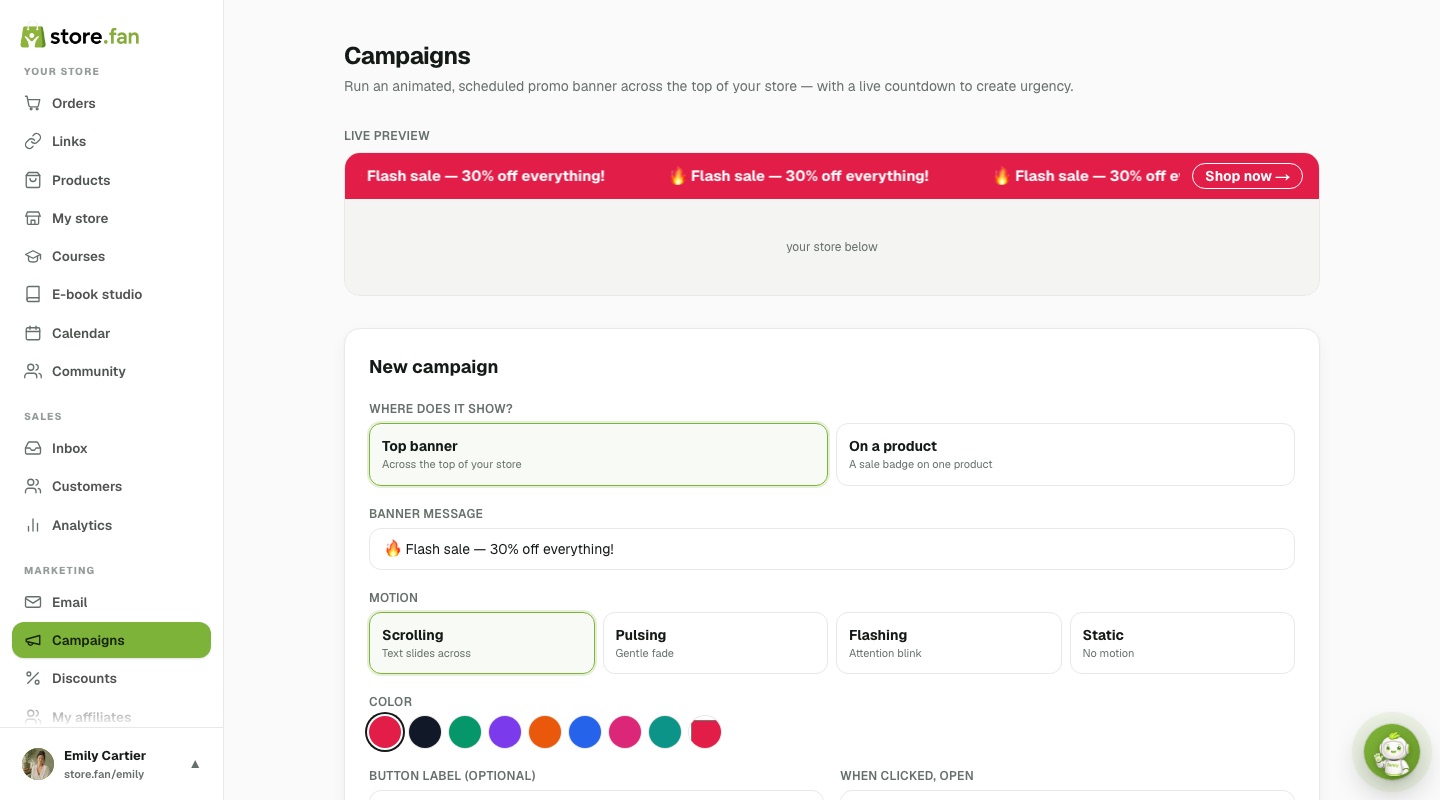 1234
1234In your store's Inbox. Receipts and campaigns are sent from your own [email protected] address, so replies come back to one place instead of a personal inbox — with the buyer's purchase history beside the message, and file attachments supported in your reply.
Customers builds itself. Every buyer, member and lead lands there automatically with lifetime value, order count and what they bought — filter by product or membership, search by name or email, and export the whole thing whenever you want. It's the list your email campaigns target, and it's yours to take.
Yes — 25% of every payment a creator you referred makes for their first 12 months, renewals included, not just their first invoice. Commissions are paid to your Stripe account, and the dashboard shows referrals and earnings as they happen. There's also a ready-made referral card you can add to your own storefront.
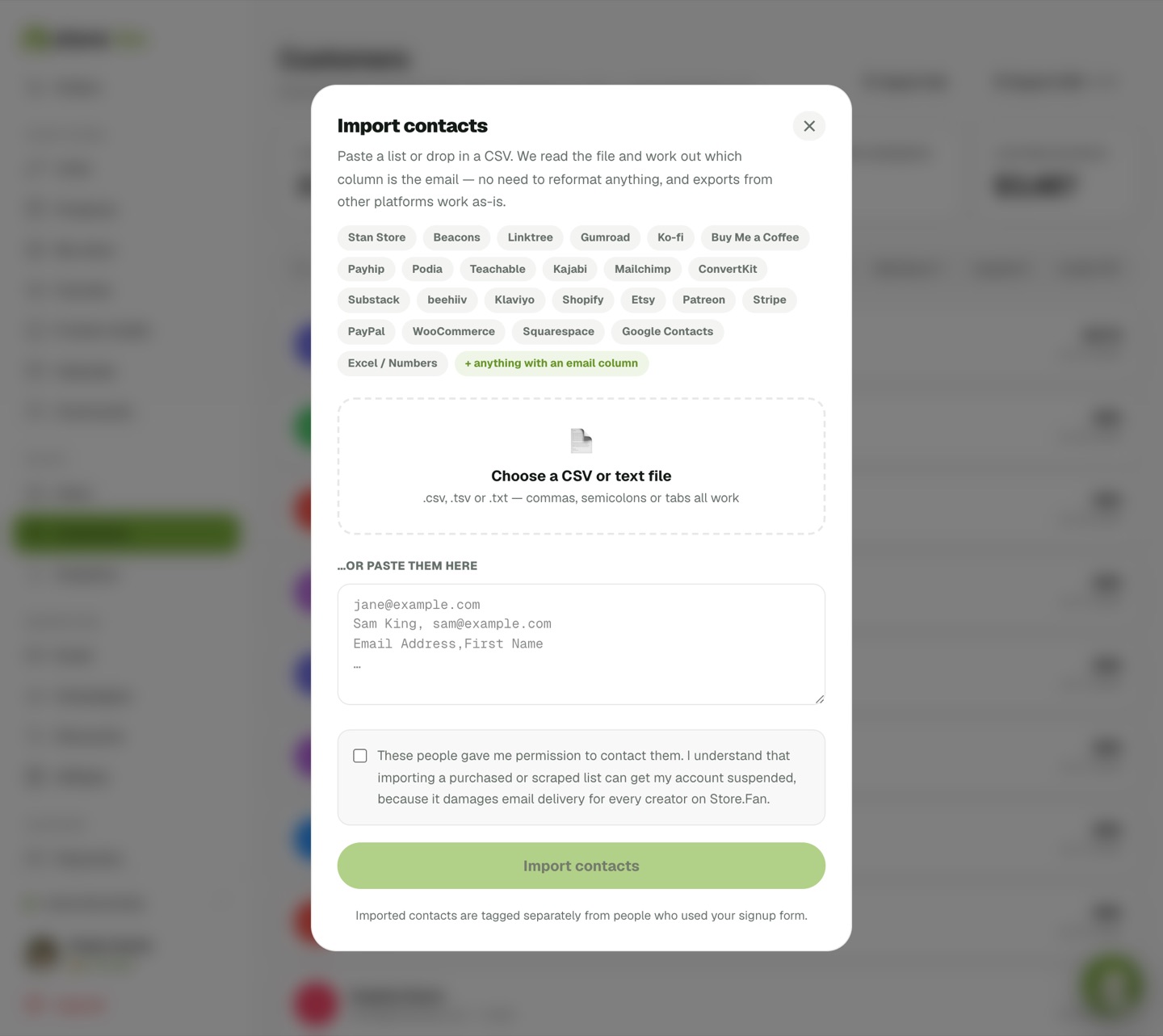
Yes, and you don't have to reformat anything. Export a CSV from wherever your people are now — Stan Store, Beacons, Linktree, Mailchimp, ConvertKit, Substack, Gumroad, Ko-fi, Buy Me a Coffee, Payhip, Podia, Teachable, Kajabi, Shopify, Etsy, Patreon, Stripe, PayPal, WooCommerce, Squarespace, Google Contacts or plain Excel — then paste it or drop the file in. We detect the delimiter, work out which column holds the email and which holds the name, and skip duplicates and rows without a valid address.
It also copes with messy files: no header row, semicolons or tabs instead of commas, quoted fields, or a list of addresses pasted straight out of an email. If a column contains email addresses, we'll find it.
 1234
1234Any time, on every plan including Free. One tap downloads a CSV with each person's name, email, whether they're a buyer or a lead, order count, lifetime spend, currency, memberships and the dates you first and last saw them. It opens cleanly in Excel, Numbers and Google Sheets.
This matters more than it sounds: contacts you collect here are yours, so you're never locked in. Lead capture is free too — a free account collects emails, sees them and exports them. Sending campaigns to that list is the part that needs Pro.
Yes, deliberately. Free accounts can import 500 contacts at a time, Starter 5,000 and Pro 25,000 — larger lists go in batches. Imported people are tagged separately from those who used your signup form, so we can act on a problem list without touching everyone else's.
The reason is shared reputation: every creator's email goes out through the same infrastructure, so one purchased list generating spam complaints would hurt deliverability for everybody. That's also why the consent confirmation isn't a formality.
Ready-to-Sell products
100+ personalized products we produce and deliver for you.
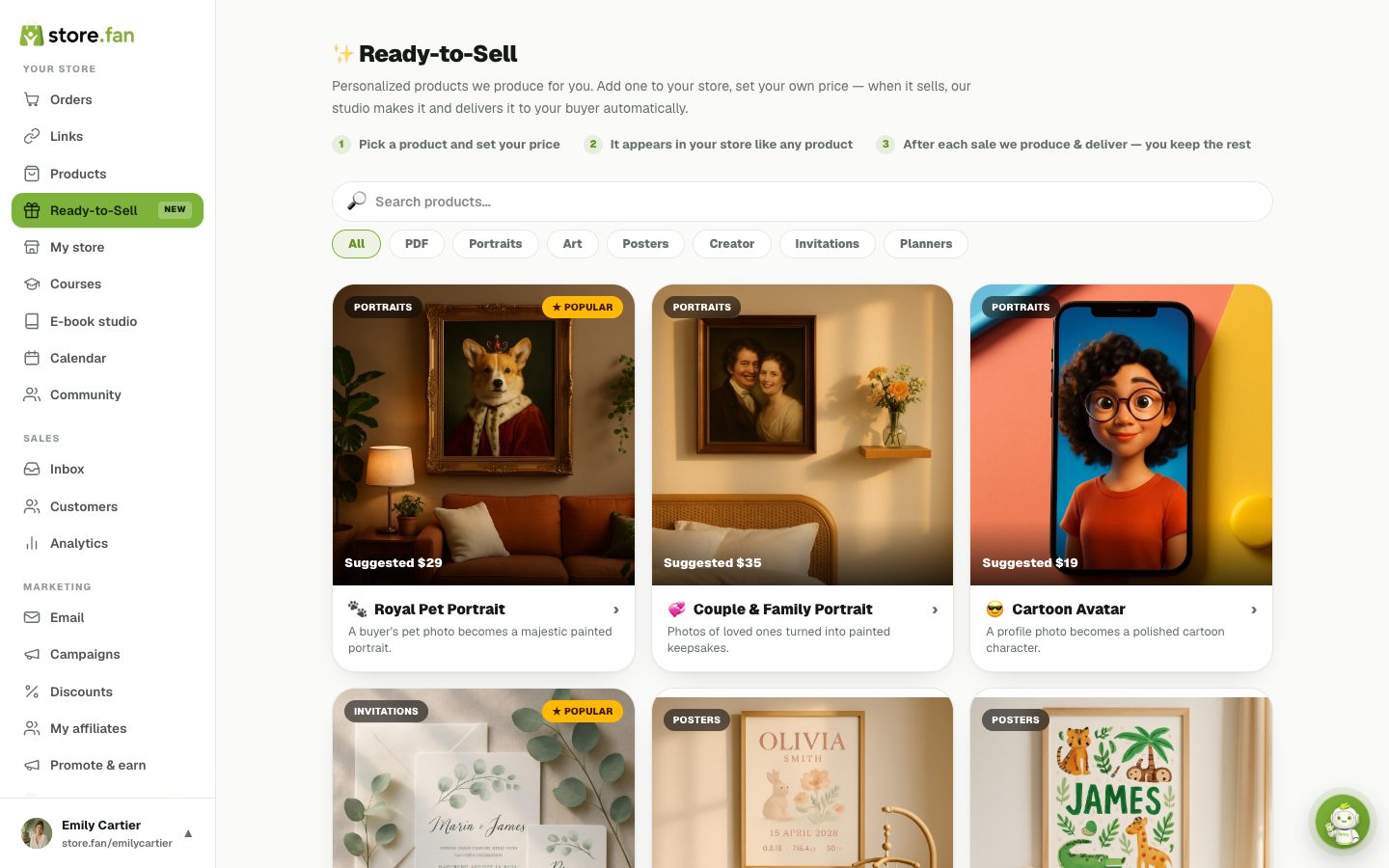
A catalog of 100+ personalized products — royal pet portraits, illustrated storybooks, original songs, planners, resumes and more — that you can add to your store in one click. You set your own price; when one sells, our AI studio produces the piece from the buyer's photos and details and delivers it automatically. You never make, ship or fulfill anything.
Each product carries a small flat production fee ($1 for artwork, $3 for books, kits and audio) that is collected from the sale — everything above it is yours.
 123
123Exactly like any other purchase: they pay on your storefront, then land on their order page. There they upload their photo or details, pick a style, and press create — our studio produces the artwork, book, document or song in minutes, right on that page. They get several versions to choose from and can download everything in high resolution.
You'll see the order in your dashboard like any sale — but there is nothing for you to do.
Nothing up front — activating products is free on every plan, Free Plus included. Each sale carries a flat production fee that comes out of the payment automatically: $1 for single artworks and documents, $3 for multi-page books, brand kits, songs and audio stories. On Starter and Pro you keep everything above it; on Free Plus, Store.Fan's 30% platform fee also comes out.
Example: on Starter, sell the Personalized Storybook at the suggested $49 → $3 production → $46 to you (minus standard Stripe processing). On Free Plus the same sale leaves you $31.30. You can price anything however you like above its small minimum.
Six categories and four production engines: portraits and artwork from photos (pet portraits, family paintings, caricatures, room makeovers), typeset designs (invitations, posters, certificates, menus), multi-page PDF books (storybooks, coloring books, recipe books, wedding suites, brand kits), real-text documents (resumes, media kits, meal and workout plans), and audio (original songs with vocals in 7 languages, narrated bedtime stories).
Every product page shows real sample results before you add it.
Your affiliate program
Set a commission and let other people sell your products.
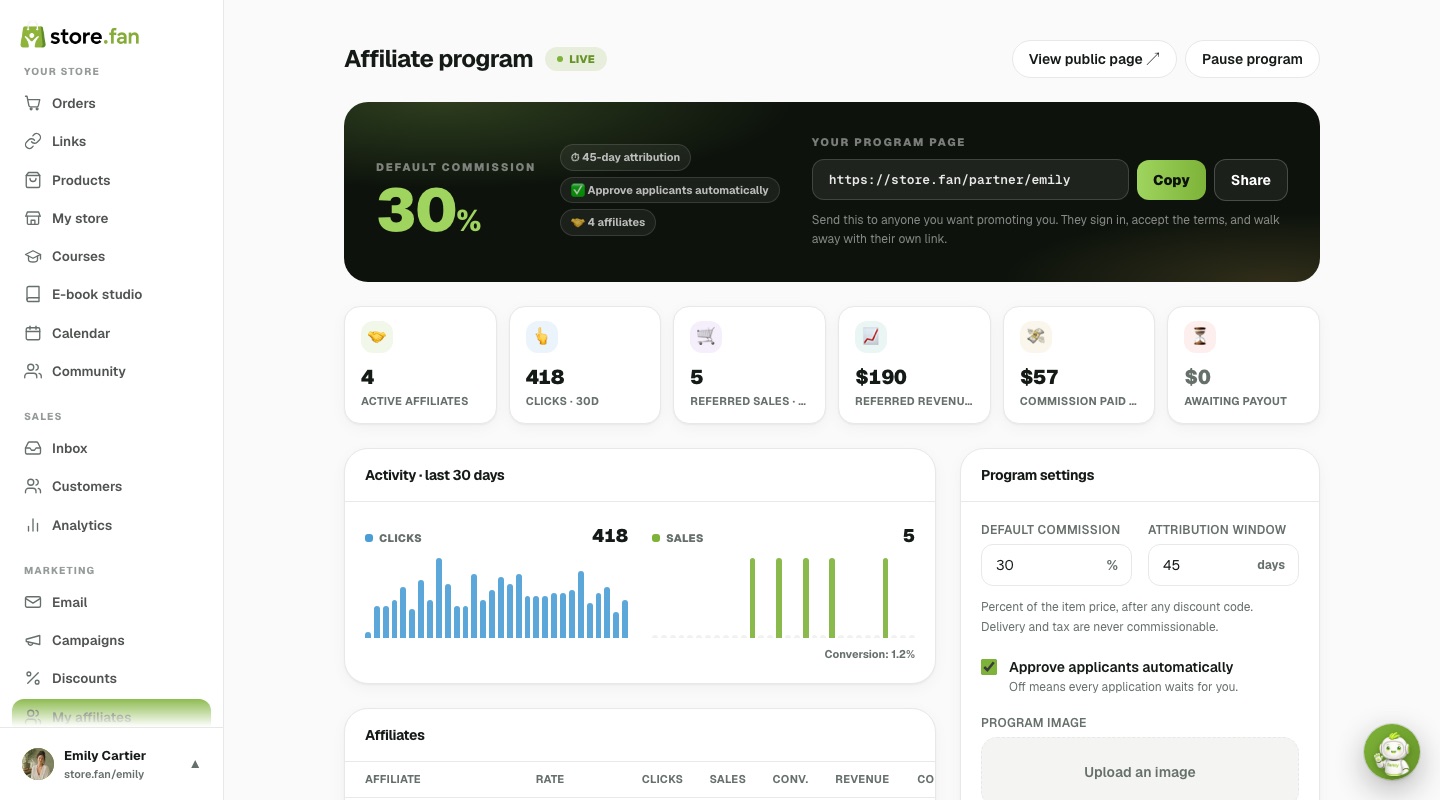
Yes — that's your own affiliate program, on Pro. You set a commission (one rate for everything, or a different rate per product), and anyone with a Store.Fan account can join and get a referral link. When a sale comes through that link, the commission leaves the payment automatically and is transferred to the affiliate's own Stripe account; the rest lands in yours like any other sale. You never hold their money and never send an invoice.
- 1Dashboard → My affiliates → accept the terms and pick your default commission.
- 2Share your program page — store.fan/partner/yourname — with anyone you'd like promoting you.
- 3They sign in, accept the terms and get their link. Turn off auto-approve if you'd rather vet applicants.
- 4Watch clicks, sales and commission per affiliate, and give your best ones a better rate.
 1234
1234💡 Set a lower rate on thin-margin items. A per-product rate beats every other rate for that product, including an affiliate's special rate — so a 1:1 call never has to pay what a $12 download can afford.
Both. The program default applies to everything, a per-product rate overrides it for that product, and a per-affiliate rate rewards someone who has proved they can sell. When they conflict, the product's rate wins over everything else — including a personal deal — because the product's margin is the thing that can't be negotiated with.
- 1Dashboard → My affiliates → Per-product commission: type a rate next to any product, or switch it out of the program entirely.
- 2Click any affiliate row to set their personal rate or leave a private note.
- 3Changes apply to future sales only — every commission is frozen at the moment the buyer pays.
💡 A 1:1 coaching call can rarely afford what a $12 download can. Give high-touch products their own lower rate instead of lowering the whole program.
You get a public page at store.fan/partner/yourname — your cover photo, your pitch, your house rules, and every product with exactly what it pays per sale. Anyone with a Store.Fan account (free included) signs in there, accepts the terms, and walks away with their own tracked link. If you'd rather vet people, turn auto-approve off and each application waits for you.
It's reversed automatically, in the same proportion — including pulling the money back out of the affiliate's Stripe balance if it was already paid. A half refund halves the commission; a chargeback reverses all of it. A commission is only ever earned on money you actually keep, which is also why the refund button now issues the real Stripe refund rather than just marking the order.
Promote & earn
Join other creators' programs — free on any plan, paid to your own Stripe.
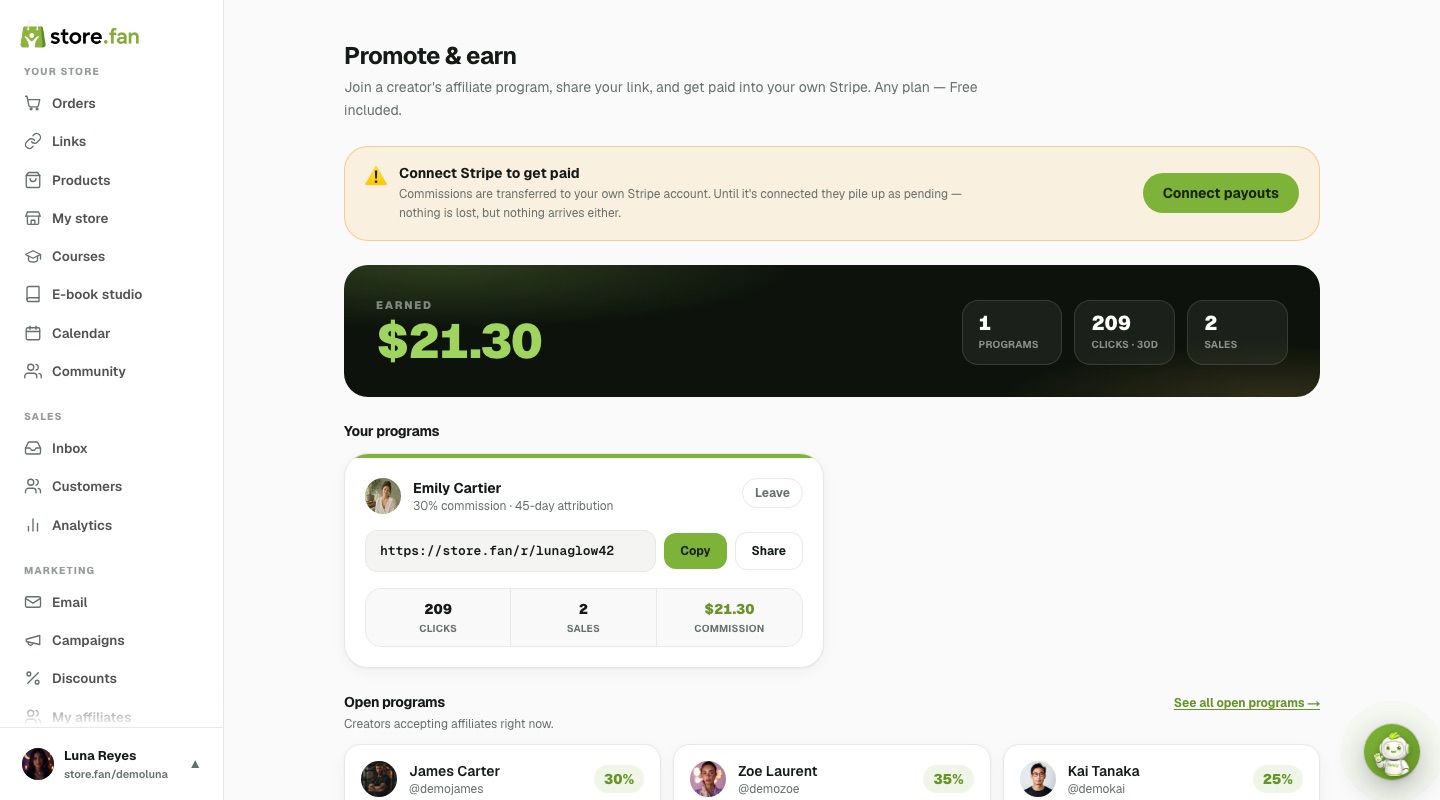
Open Promote & earn in your dashboard, pick a creator whose program is open, accept the terms and you get your own link. Anything bought through it within that creator's attribution window pays you, and the commission is transferred to your own Stripe account when the payment settles — no invoices, no chasing. It's free to join on every plan, including Free; the only requirement is connecting Stripe so there's somewhere to send the money.
- 1Dashboard → Promote & earn → browse the open programs.
- 2Open a creator's program page to see the rate and what each product pays.
- 3Accept the terms and copy your link.
- 4Connect Stripe in Dashboard → Payments so commissions can actually land.
 1234
1234💡 Your dashboard shows the sale amount, the rate and your commission for every referred order — but never the buyer's name or email. That stays with the creator.
The open-programs directory lists every creator currently taking affiliates — sortable by rate, catalogue size or newest, with the commission and attribution window shown up front. Open any program page to see what each individual product pays before you commit. Pick something you'd genuinely recommend: relevance to your audience beats a higher percentage every time.
Automatically, into your own Stripe account, as each referred payment settles. There are no invoices to send, no payout day to wait for and no minimum threshold to reach — a $3 commission transfers the same way a $300 one does. If your Stripe isn't connected yet, commissions accumulate as pending and go out on their own once it is. The one thing that can take money back is a refund: the commission reverses in the same proportion.
💡 Connect Stripe from Dashboard → Payments before you start sharing links, so your first commission lands instead of waiting.
The creator chooses the window, anywhere from 1 to 180 days, counted from the visitor's most recent click. If two affiliates of the same creator both referred one buyer, the most recent click wins. Attribution lives in the visitor's browser, so a cleared cookie, a different device or a purchase made outside that browser can mean no commission is recorded — that's a limit of the technology, not a rule anyone can bend.
No. A checkout using the affiliate's own account email earns nothing — it's blocked at the moment of purchase rather than policed afterwards. Self-referral is the single most common way affiliate programs get gamed, so the rule is enforced in code, and it's written into the terms both sides accept.
Plans, app & account
Pricing, the iOS app, support and your data.
Free Plus is free forever: every selling feature, no monthly price, and Store.Fan keeps 30% of each sale. Starter is at launch pricing of $24/mo (regularly $29) and Pro $49/mo (regularly $99), both with a 0% platform fee and noticeably cheaper billed yearly. Paid plans start with a 14-day free trial — no card is charged until the trial ends, and cancelling before that costs nothing.
Starter is everything you need to sell: unlimited products of every type, communities, coaching calls with Google Calendar sync, the full designer, and the AI e-book studio (1 book/mo). Pro adds the growth layer: flash campaigns and discount codes, AI email marketing with 5,000 monthly sends, 10 AI e-books/mo, the 25% affiliate program, and Google Analytics. Most creators start on Starter and move up when marketing becomes the bottleneck.
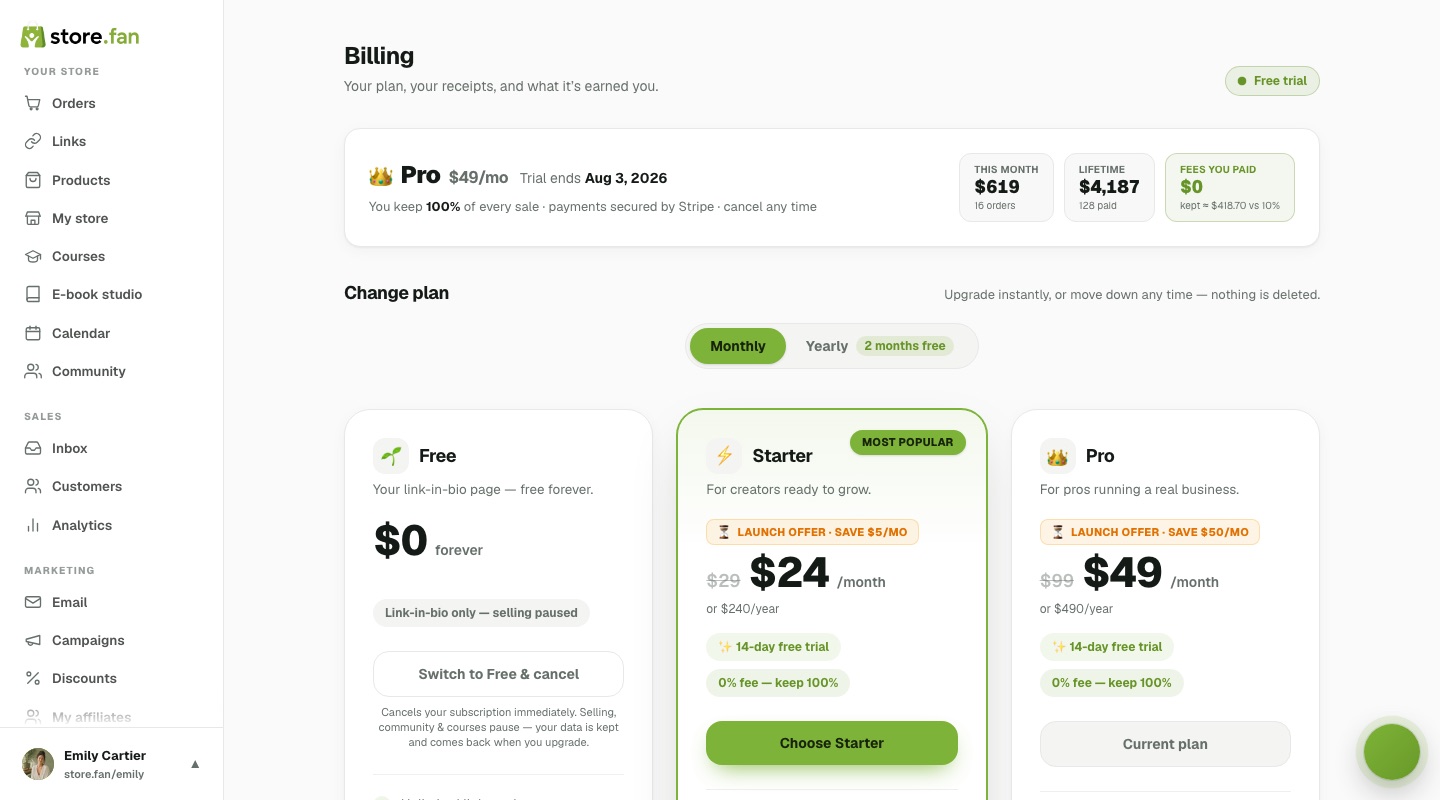 1234
1234Yes — upgrade, downgrade or switch between monthly and yearly whenever you like from Dashboard → Billing. Changes apply immediately and billing is prorated fairly; nothing about your store, products or design is ever touched by a plan change.
Your card is charged for the plan you picked and everything simply continues — store, products, sales history, design, all exactly as you left them. Cancel any time before the trial ends and you pay nothing; your free link-in-bio page stays live either way.
Yes — a fully native iOS app. Manage orders, products, your calendar and your whole store from your pocket; get a push notification the second you make a sale and a reminder 30 minutes before every booked call. You can even create your account and build your store entirely in-app with Apple or Google login.
Every dashboard has a Store.Fan Team inbox — a direct, two-way thread with our support team, no ticket numbers or email chains. A badge appears on your profile photo when something new arrives, and you reply right from the page. We usually answer within a few hours.
Custom domains are coming soon on Pro — connect yourdomain.com while store.fan/you keeps working as before. Until then every store lives at store.fan/yourname: short, fast, secure and recognizable.
Yes, on every layer:
Payments are handled entirely by Stripe — card numbers never touch our servers. Files are delivered through expiring, tokenized links. Community content behind purchase locks never leaves the server for non-buyers.
Member passwords are stored with modern salted hashing, and your customer list belongs to you alone — never shared across stores, never sold.
Effectively everything: see and search orders, add or edit products and links, manage your calendar and bookings, post to your community, write with Fanzy, check analytics, run the e-book studio and manage billing. It is not a viewer — it's the same store, native, with the same left-rail structure translated into tabs.
Yes — the app opens on a Home screen with today, 7-day and 30-day revenue, a weekly chart and your latest orders. Every sale also fires a push notification with its own sound, so you hear the cha-ching before you look. Notification types are individually switchable in the app.
A searchable list with paid, pending and refunded filters; tap any order for the buyer, product, amount, date and the delivery status. It's the fastest way to answer “did my payment go through?” while you're away from a desk.
Settings. Your photo, display name, bio, social links and store username live there, along with Google Calendar connection, marketing-email preferences and account controls. Everything is editable at any time — nothing you pick at signup is permanent.
37 of these answers show the real screen, and 21 draw the steps straight onto it. Want the screens on their own? See all 27 screenshots.
The best answer is a live store.
Claim your link free in 60 seconds — the page is yours forever, and selling starts with a 14-day trial whenever you're ready.