Add PayPal in Seconds and Sell to Everyone
Skip the developer setup — type your PayPal email, hit save, and start collecting payments from buyers who trust it most.
You know the feeling: a follower slides into your DMs ready to buy, taps your link in bio, gets to checkout — and bounces. Not because they didn't want your ebook or your coaching call. Because the only payment option on screen was a card form they didn't trust on a phone browser, and the PayPal button they were looking for wasn't there. Multiply that by every buyer who prefers PayPal, and you're quietly losing sales you never even see in your analytics — just a checkout that closed with nothing in it.
Here's the part that should feel like a relief: fixing that isn't a project. On store.fan, adding PayPal as a payment option takes about as long as it took you to read this paragraph — type in the email address tied to your PayPal account, save, and you're done. No developer, no API keys, no waiting for an integration to sync.
Why PayPal at checkout is worth those ten seconds
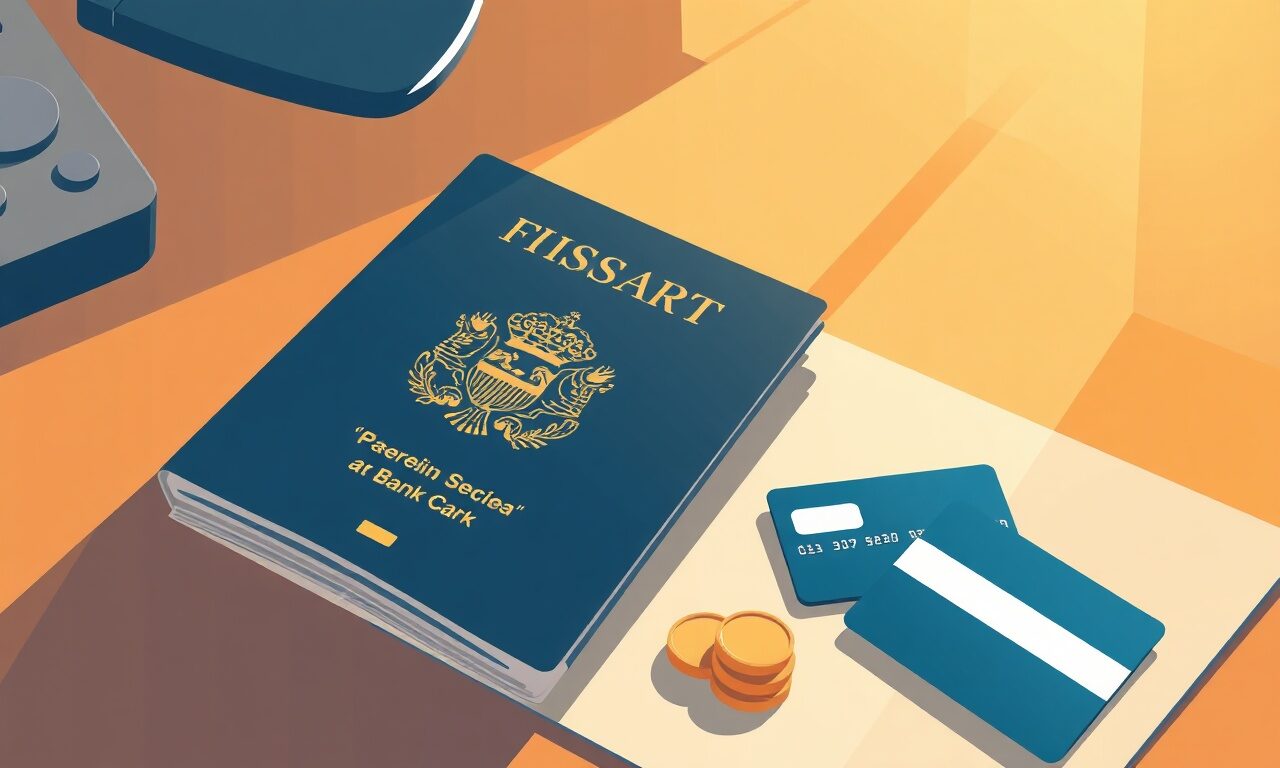
PayPal isn't a nice-to-have for a lot of buyers — it's the only way they pay online. Some don't want to hand a card number to a storefront they just discovered from a social post. Some don't have a card linked to the device they're browsing on. Some just have a PayPal balance sitting there and want to use it. When that option isn't on your checkout, those buyers don't email you asking for a workaround — they just leave. Offering PayPal next to card payments removes that entire category of silent lost sales, and it does it without adding a single extra step for the buyers who were always going to pay by card anyway.
What 'in seconds' actually looks like
This is the whole point of the feature: there's no learning curve. You're not configuring webhooks or pasting a secret key from a developer dashboard. You go to your store settings, find the payments section, and enter the email address associated with your PayPal account. That's the entire setup. The next time a buyer lands on your storefront, PayPal shows up as an option right alongside your other ways to pay — automatically, on every product, every time.
Turning on PayPal, start to finish
0/4| The old way | The store.fan way |
|---|---|
| Apply for a merchant account or developer credentials | Type your PayPal email into one field |
| Write or paste integration code, then test it | Nothing to code — it just works after you save |
| Wait on approval or technical setup before going live | Live the moment you hit save |
| Juggle a separate cart or plugin just to add one payment method | One dashboard, same storefront, one extra option |
| Lose buyers who bounce because their preferred option isn't there | Capture sales from buyers who only pay with PayPal |
And you're not choosing PayPal instead of anything — you can connect Stripe in one click for card payments and add your PayPal email on the same store, so buyers simply pick whichever they trust. Apple Pay and Google Pay ride along automatically wherever they're supported, so a mobile buyer often gets a one-tap checkout without you configuring anything extra at all. Want to see it end to end before you set up your own? Take a look at a live example store to see exactly where these options sit on a real checkout.
It fits everything you already sell
PayPal isn't a special checkout bolted onto one product type — it works across everything a store.fan storefront can sell. A buyer paying for your Notion template, your online course, a 1:1 coaching call, a seat in your live webinar, or a membership tier all go through the same simple PayPal option if you've turned it on. And delivery doesn't change either: once payment clears, the buyer gets their secure download link or access details automatically, on-screen and by email — the same instant delivery you'd get with any other payment method on store.fan.
That consistency is what makes this feature feel less like a setting and more like a small, permanent upgrade to your entire store. You add it once, and it applies to every product you list from that point forward, including anything you add later. There's nothing to repeat, no per-product toggle to remember.
You don't need to be technical for any of this
If the phrase 'payment integration' makes you brace for a headache, that instinct is reasonable — it's exactly why so many creators put this off for months. But store.fan was built so none of that applies here. There's no code to write, no account to verify with a third party before you can accept your first payment, and no separate app to install. If you can fill out a form field, you can add PayPal to your storefront. The same simplicity carries through the rest of the platform, from your FAQ-worthy first questions to picking a plan — pricing is straightforward, and paid plans carry 0% platform fees so what buyers pay is what flows to you, minus only standard processor fees.
The best payment setup is the one you forget you ever configured — it just works, every time someone's ready to buy.— A good rule for any storefront checkout
From empty storefront to accepting PayPal, today
If you haven't set up your storefront yet, none of this requires doing things in a particular order. You can create your store, pick a theme in the store designer, list your first product, and add your PayPal email in the same sitting — realistically in less time than it takes to draft the social post announcing it. There's a free plan to get started, so you can see the whole flow, including checkout, before deciding whether to upgrade. For more on getting your first sale, more guides walk through everything from pricing your first product to writing the caption that sends people to your link.
Yes. There's no separate application, no code, and no waiting period. You enter the email address tied to your PayPal account in your store settings and save — PayPal appears as a checkout option immediately.
No. This is designed for creators, not developers. If you can fill in a settings field, you have everything you need to turn PayPal on.
No. There's no store.fan wallet. Payments made via PayPal go directly to the PayPal account tied to the email you provided, the same way Stripe payments go straight to your connected Stripe account.
Yes. Connect Stripe in one click for card payments and add your PayPal email for PayPal — buyers simply choose whichever option they prefer at checkout. Apple Pay and Google Pay also work automatically wherever supported.
You can start on the free plan to explore your storefront and payment setup. Paid plans add 0% platform fees on top of that, along with other tools like custom domains and campaign emails — see pricing for the full comparison.
Your buyers are already looking for the PayPal button. Give it to them in seconds.
Start freeTurn your knowledge into income
Launch your Store.Fan in minutes — sell digital products, courses, and calls straight from your bio. Free to start.